

Use API keys and webhooks
Issue credentials from your own app with a scoped API key, and get signed webhooks when people open, download or share them.
This page shows you how to create an API key, issue a credential with it, and listen for events.
Step 1: Open API keys
In Settings, API keys lists your keys with their scopes, who made them and when each was last used.
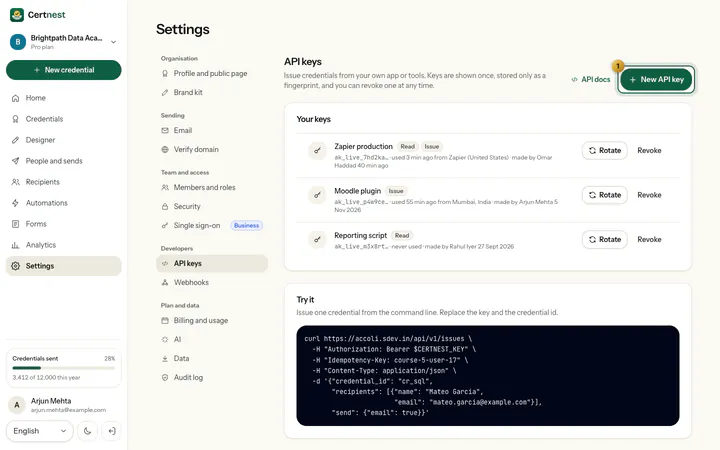
Step 2: Press New API key
Name it after what uses it, such as "Course site", and give it only what it needs: read to look things up, issue to send credentials, admin to create credentials and webhooks.
Step 3: Copy the key once
The key is shown only once. Store it in your app's secret settings, tick I have stored it somewhere safe, and close. We keep only a fingerprint of it.
Step 4: Issue a credential
Send a request like the one below. Up to 1,000 people go in one call.

curl https://certnest.co/api/v1/issues \
  -H "Authorization: Bearer $CERTNEST_KEY" \
  -H "Idempotency-Key: course-12-user-408" \
  -H "Content-Type: application/json" \
-d '{"credential_id": "cr_python", "recipients": [{"name": "Tomasz Nowak", "email": "tomasz.nowak@example.com"}], "send": {"email": true}}'The Idempotency-Key makes retries safe: the same key never issues twice. A person who already holds a live copy comes back marked as a duplicate.
Rotate and revoke
- Rotate makes a new key with the same permissions and stops the old one at once. Put the new key where the old one was.
- Revoke stops a key at once. Credentials it issued stay valid.
Webhooks
In Settings, Webhooks, add an endpoint address and pick events such as issue.created, issue.opened, issue.linkedin_added or issue.bounced. Each delivery is signed with HMAC-SHA256 and a timestamp in the Certnest-Signature header, using a signing secret shown once. Check the signature and refuse anything older than 5 minutes. Failed deliveries are retried for 3 days, and Recent deliveries shows each one.
If something goes wrong
- 401 or 403: the key is wrong, revoked, or missing the scope the call needs. Check its scopes in the list.
- 422: a field is missing or not valid, such as an email with no domain. The answer names the field.
- A key may have leaked: revoke it at once, then make a new one. The audit log shows what it did.
The full reference, with every route and answer, is on developers.
Related help
- Issue credentials automaticallySend a credential on its own when a row is added, a form is filled in, a course ends or your app calls a webhook, with rules such as a pass mark.
- Invite your team and set rolesAdd as many members as you like, give each the role they need, and protect sign-in with two-step codes and single sign-on.
- Send credentials and follow the live boardTest, then send now, schedule or download only, and watch each person's email go from queued to opened, downloaded and added to LinkedIn.
Read more on the blog
 How-to
How to choose certificate software: a buyer's checklist
Twelve things to score before you pick a tool for certificates and badges, the questions to ask in a free trial, and the pricing details that decide the real cost.
7 min read
 Standards and verification
Open Badges 3.0 explained
Open Badges 3.0 is the open standard for badges and certificates you can check anywhere. Here is how it works, without the jargon.
6 min read

