

Set up your sending and verify domains
Send credential emails from your own address with SPF, DKIM and DMARC, and put credential pages on your own web address.
This page shows you how to send from your own email domain and show credential pages on your own address.
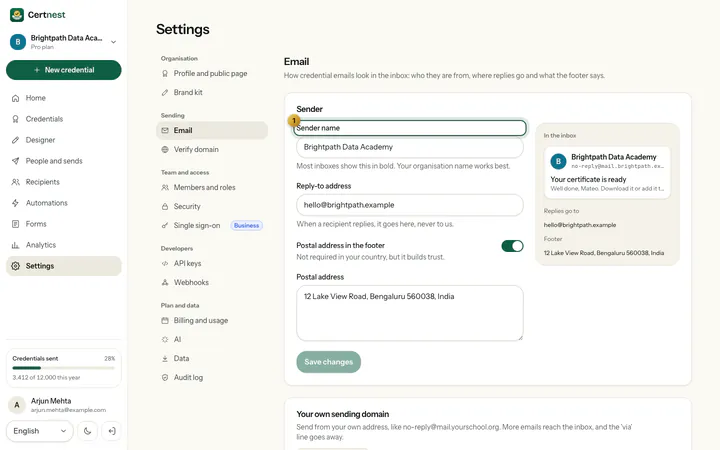
Step 1: Set the sender details
In Settings, Email, set the Sender name people see, a Reply-to address and, where your country needs it, a Postal address in the footer. The In the inbox preview shows the result.
Step 2: Add your sending domain
Under Your own sending domain, enter a subdomain such as
mail.yourschool.org. Using a subdomain keeps your everyday email unaffected.Step 3: Add the DNS records
Copy each record into the place you manage DNS for your domain: SPF and DKIM prove the emails come from you, DMARC tells inboxes what to do with mail that fails those checks.
Step 4: Wait for the check
The status moves from Waiting for DNS to Verified once the records are live. We check again every 15 minutes for 3 days and email you when it is done.
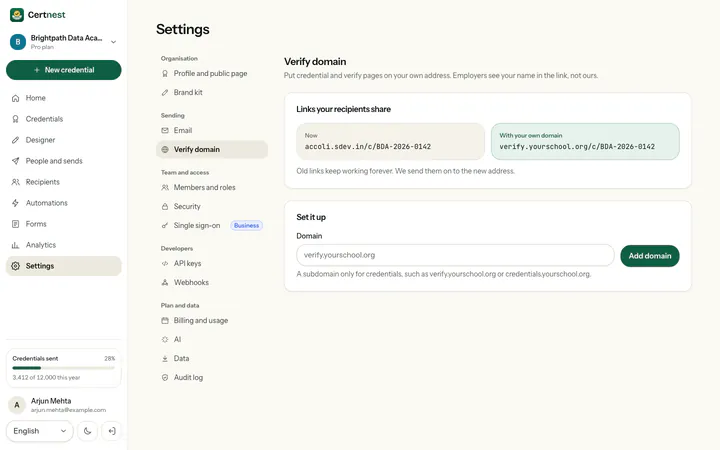
Step 5: Add a verify domain
In Settings, Verify domain, add an address such as
certificates.yourschool.organd its record. Credential and verify pages then show your name in the link.


Which plans include it
Your own sending domain comes with Pro, Business, Enterprise and the Event pass. Your own verify domain comes with Pro and above. On Free, emails come from our own well-kept address with your name in front, and every credential can still be verified on our domain. See pricing.
If something goes wrong
- Check failed: compare each record with what you added, character by character. Some DNS tools add your domain to the end of the name on their own, so you may need only the first part.
- Partly set up: one record is still missing. The list shows which.
- You remove the domain: emails and links go back to our shared address straight away.
Related help
- Fix bounced emails and resendFind the emails that did not arrive, correct the address and resend for free, and keep your sending in good health.
- Send credentials and follow the live boardTest, then send now, schedule or download only, and watch each person's email go from queued to opened, downloaded and added to LinkedIn.
- Invite your team and set rolesAdd as many members as you like, give each the role they need, and protect sign-in with two-step codes and single sign-on.
Read more on the blog
 Standards and verification
How to stop fake certificates of your organisation
Fakes are easy to make from a PDF. Here is how they happen, the defences that work, and what to tell employers so they can check your certificates in seconds.
6 min read
