

Issue credentials automatically
Send a credential on its own when a row is added, a form is filled in, a course ends or your app calls a webhook, with rules such as a pass mark.
This page shows you how to set up an automation so credentials go out without anyone pressing Send.
Step 1: Open Automations
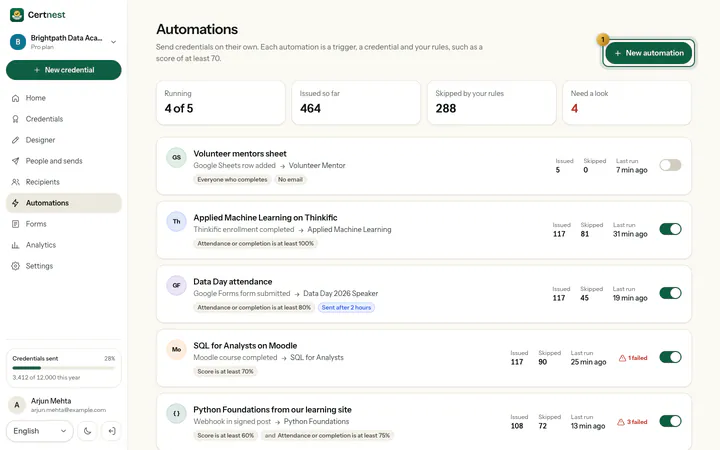
Press Automations in the menu, then New automation. The list shows each automation with how many it issued, how many it skipped by your rules, and when it last ran.
Step 2: Pick a trigger
Choose where the event comes from: Spreadsheets and forms (a row is added or a form is filled in), Course platforms (someone completes a course), No-code tools (an automation tool you already use), or Developers and AI assistants (a webhook, the API or an AI assistant).
Step 3: Pick the credential
Each automation sends one credential. Map the incoming fields to the person's name, email and the smart fields on the design.
Step 4: Add rules
Only issue when it is earned, for example a score of at least 70 or attendance of at least 80 percent. People below the line are skipped, with the reason in the run log.
Step 5: Test, then turn it on
Send a test event and read the result in the run log. When it looks right, switch the automation on.

Using a webhook
Every automation can take events at its own webhook address. Send the person's name and email and, if you use rules, a score or attendance. Requests are signed with a secret, so nobody else can issue in your name. The developer docs show the body and the answers.
If something goes wrong
- Need a look: an automation with failed runs shows a count. Open its run log to see why, fix the mapping, and run it again.
- Everyone is skipped: check your rules. A score field mapped to the wrong column often reads as zero.
- Pause an automation with its switch at any time; nothing is lost.
Related help
- Send credentials and follow the live boardTest, then send now, schedule or download only, and watch each person's email go from queued to opened, downloaded and added to LinkedIn.
- Use API keys and webhooksIssue credentials from your own app with a scoped API key, and get signed webhooks when people open, download or share them.
- Import your people from a file or a listAdd the people who get a credential from a CSV or Excel file, a pasted list or an online sheet, with columns matched and rows checked for you.
Read more on the blog
 For events
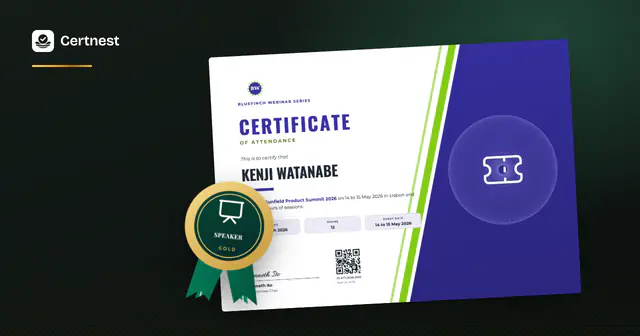
Webinar attendance certificates, sent the same day
Set a fair attendance rule, turn your attendee export into certificates, and send them while the session is still fresh, with separate thanks for speakers and hosts.
6 min read
 For course creators
Course completion certificates for online courses
Fair completion rules, a certificate worth sharing, automatic issuing from your course platform, and a next step for every learner who finishes.
6 min read

