

Open your credential
Open the credential an organisation sent you, see what it says, and check that it is valid. No account or password needed.
This page shows you how to open a credential someone sent you and what each part of the page means.
Step 1: Find the email
The email comes from the organisation that awarded you, with a subject such as Your certificate is ready. If you cannot find it, look in your spam or promotions folder and search for the organisation's name.
Step 2: Press View your credential
The button opens your own credential page. Its address looks like
certnest.co/c/BDA-2026-0142, or the organisation's own address if they set one up. You do not need an account, a password or an app.Step 3: Read the status at the top
A green Valid credential line means the issuer's digital signature checks out and the credential has not been revoked. Under it you see who it was awarded to, who issued it and when.
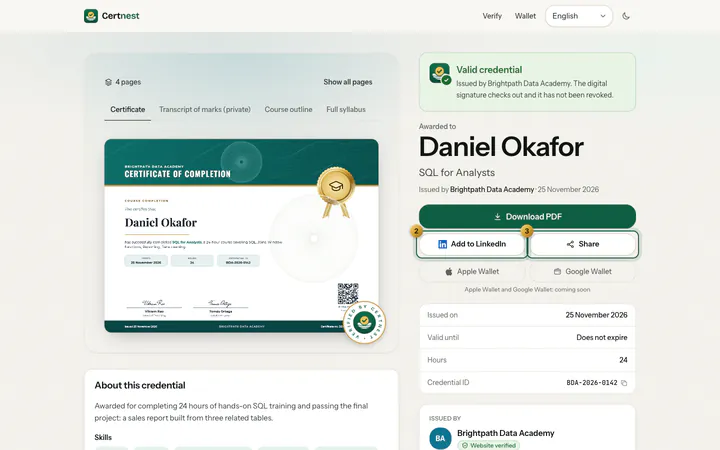
Step 4: Look at the details
Scroll to About this credential for what it was awarded for, the skills, How it was earned, the hours or credits, the issue date, the end date (or Does not expire) and the Credential ID.
Step 5: Keep the link
Your page stays online for good, even if the organisation later stops using Certnest. Save the email, bookmark the page, or open your wallet to see every credential sent to your email address in one place.

On a phone
The page is made for phones first. The buttons to download, add to LinkedIn and share sit right under your name, so one tap does each job.

What the other statuses mean
- Valid until a date: the credential is valid now and has an end date, for example a certification you renew each year.
- Expired: the end date has passed. The page still shows that it was once valid and until when. Ask the issuer how to renew.
- Revoked: the issuer withdrew it, often with a reason. If you think this is a mistake, write to the issuer.
- Under review: someone reported the page and our team is looking into it. Check again later.
- Not found: no credential has this ID. Check the link, or ask the issuer to send it again.
If something goes wrong
- The link does not open: copy the whole address from the email into your browser. Some email apps cut long links.
- Your name is wrong: ask for a correction. It is free for you and for the issuer. See Fix a mistake in your name.
- You never got the email: ask the organisation to check the address they have for you and resend it.
Related help
- Download your credential as PDF, PNG or Open BadgeSave your credential as a PDF to print, a picture to post, an Open Badge or a signed file that any standard checker can verify.
- Add your credential to LinkedInPut your credential in the Licenses and certifications part of your LinkedIn profile in one tap, with every field filled in for you.
- Keep all your credentials in your walletSign in with an email code to see every credential sent to your address, from any issuer, and manage each one.
Read more on the blog
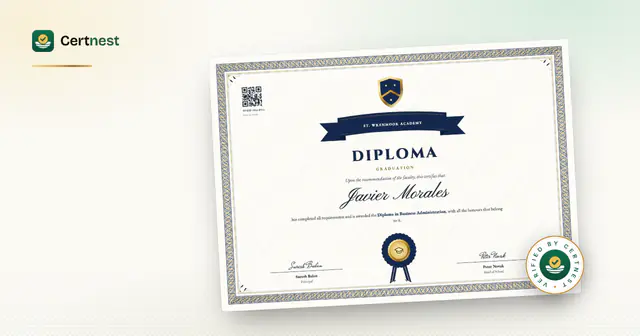 Certificates
Digital credentials vs paper certificates: an honest comparison
Paper still has its moments, and digital wins most of the rest. Here is a fair look at both, and how to give people the best of each from one design.
8 min read
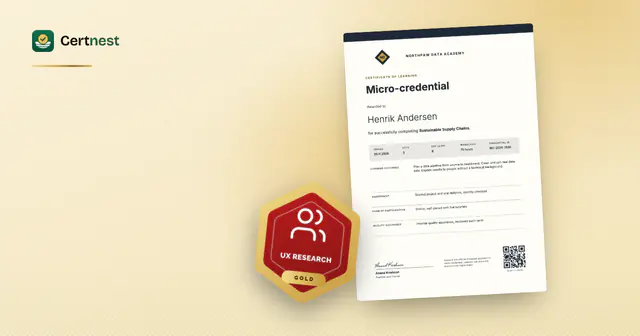 Digital badges
What is a digital badge?
A digital badge is a small picture that carries proof of what someone did. Here is what is inside one, how it compares with a certificate, and how to start your own.
6 min read

