

Add your credential to LinkedIn
Put your credential in the Licenses and certifications part of your LinkedIn profile in one tap, with every field filled in for you.
This page shows you how to add your credential to your LinkedIn profile and how to share it in a post.
Step 1: Open your credential page
Use the link in the email, or open it from your wallet. Sign in to LinkedIn in the same browser first; it saves a step.
Step 2: Press Add to LinkedIn
The button sits under Download PDF. It opens LinkedIn's own add form, already filled in.
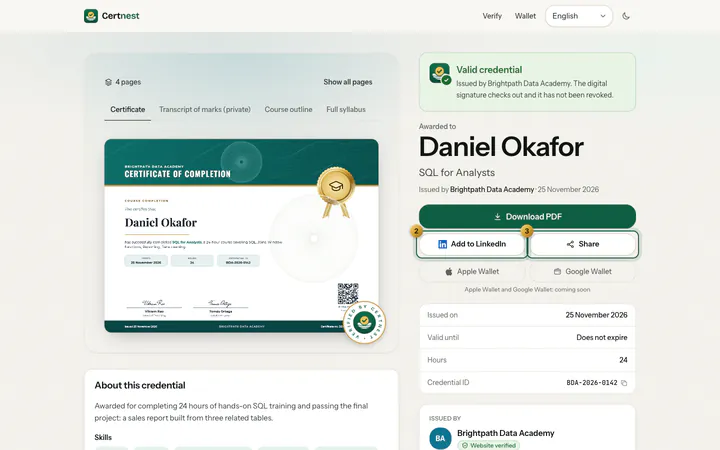
Step 3: Check the fields
LinkedIn shows the name of the credential, the issuing organisation, the issue date, the end date when there is one, the Credential ID and the credential URL. Leave the URL as it is: it is the link employers use to check it.
Step 4: Press Save on LinkedIn
The credential now appears under Licenses and certifications on your profile, with a Show credential button that opens your page.

Share it in a post too
Adding to your profile is quiet; a post tells your network. Press Share on your credential page and pick LinkedIn. The post carries a picture of your certificate and the link.

A short line in your own words works best: what you learned, who taught it and what you will do with it. Tag the organisation if you like.
If something goes wrong
- The organisation name shows as plain text, without a logo: LinkedIn links the logo only when the issuer has connected their LinkedIn page to their account. The entry still works.
- The form opens empty: sign in to LinkedIn, then go back to your credential page and press the button again.
- Your name on the certificate is wrong: fix it first, so the picture you share is right. See Fix a mistake in your name.
- There is no Add to LinkedIn button: the issuer turned sharing off for this credential.
Related help
- Open your credentialOpen the credential an organisation sent you, see what it says, and check that it is valid. No account or password needed.
- Download your credential as PDF, PNG or Open BadgeSave your credential as a PDF to print, a picture to post, an Open Badge or a signed file that any standard checker can verify.
- Privacy and deleting your copyChoose who can see your credential page, make it public or private, and delete your copy if you no longer want it online.
Read more on the blog
 How-to
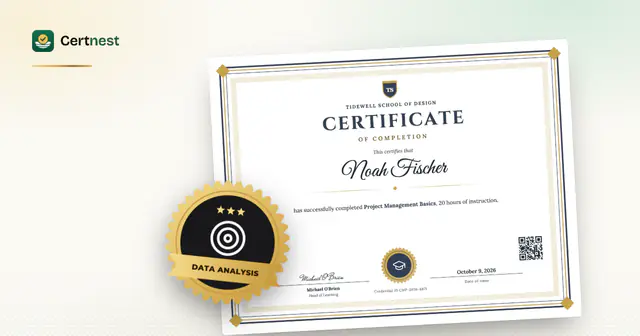
How to add a certificate to LinkedIn, field by field
A clear walk through LinkedIn's certification form for the person who earned it, and what issuers can do so the form fills itself.
7 min read
 How-to
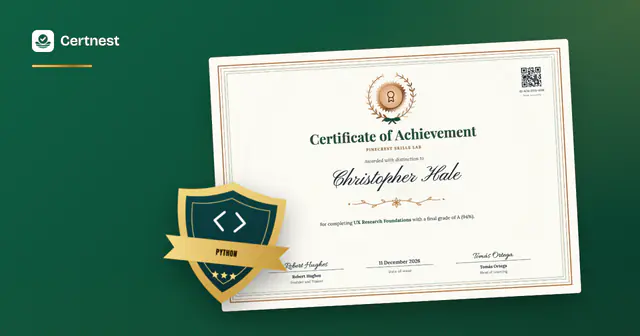
How to create a LinkedIn certification badge people want to show
A good LinkedIn badge is small, clear and easy to add. Here is how to design it, what to put behind it, and how to get people to share it.
8 min read

