

Keep all your credentials in your wallet
Sign in with an email code to see every credential sent to your address, from any issuer, and manage each one.
This page shows you how to open your wallet and what you can do there.
Step 1: Go to the wallet
Open /wallet on any device. There is no password and no account to create.
Step 2: Enter your email and press Send me a code
Use the address your credentials were sent to. Tick the box to confirm you are 18 or older, or that a parent or guardian is with you.
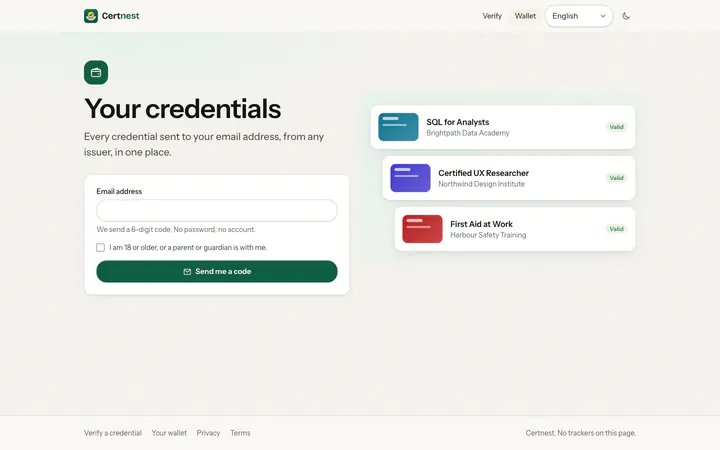
Step 3: Type the 6-digit code
The code arrives by email within a minute. Type it and press Open my wallet.
Step 4: See every credential
Your wallet lists every credential sent to that address, from every organisation that issues with Certnest, each with a small picture and its status.
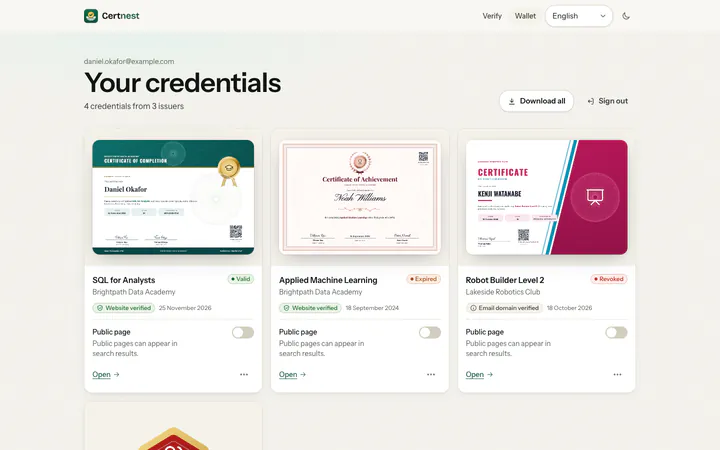


What you can do in your wallet
- Open any credential to download it, add it to LinkedIn or share it.
- Public page: turn this on to let search engines list a credential. It is off by default.
- Fix my name: ask the issuer to correct your name. See Fix a mistake in your name.
- Delete my copy: remove a credential from your wallet and take its page down. See Privacy and deleting.
- Download all: save every credential in one go.
- Sign out when you are on a shared computer.
If something goes wrong
- No code arrives: wait a minute, check spam, then ask for a new code.
- Nothing here yet: no credential has been sent to this address. Try another address, or ask the issuer which one they used.
- A credential is missing: it may have gone to a different address. The original email tells you which.
Related help
- Open your credentialOpen the credential an organisation sent you, see what it says, and check that it is valid. No account or password needed.
- Fix a mistake in your nameAsk the issuer to correct a spelling mistake or the wrong name on your credential. It is free, and your link keeps working.
- Privacy and deleting your copyChoose who can see your credential page, make it public or private, and delete your copy if you no longer want it online.
Read more on the blog
 Certificates
Digital credentials vs paper certificates: an honest comparison
Paper still has its moments, and digital wins most of the rest. Here is a fair look at both, and how to give people the best of each from one design.
8 min read
