

Download your credential as PDF, PNG or Open Badge
Save your credential as a PDF to print, a picture to post, an Open Badge or a signed file that any standard checker can verify.
This page shows you how to save your credential to your device, and which file to pick for each job.
Step 1: Open your credential page
Use the link in the email from the organisation, or open it from your wallet.
Step 2: Press Download PDF
The big button under your name saves a PDF. It is a PDF/A file, the long-term archive kind, with the signed credential inside it, so the file itself can be checked later.
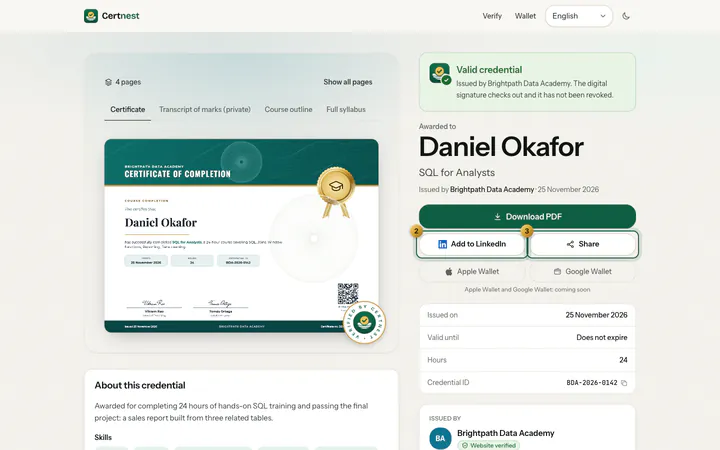
Step 3: Pick another format if you need one
Under More options you find Picture (PNG), Open Badge (PNG) and Signed JSON. Each one is made on your device in a few seconds. When it is ready you see Saved to your device.
Step 4: Print it, if you like
Open the PDF and print at 100 percent (actual size) on A4 or Letter, whichever the issuer chose. Thick matte paper looks best.

Which file should you choose?
| File | Best for |
|---|---|
| Printing, attaching to a job application, keeping a copy. Carries the signed credential. | |
| Picture (PNG) | Posting on social media, adding to a slide or a portfolio. |
| Open Badge (PNG) | Badge backpacks and other tools that read the Open Badges 3.0 standard. The signed data is baked into the picture. |
| Signed JSON | Developers and checkers that read W3C Verifiable Credentials directly. |
Want to know more about the standard behind the last two? Read Open Badges 3.0 explained.
If something goes wrong
- Could not make the file: check your connection and press the button again. Older phones can take a little longer for the PDF.
- Nothing seems to happen on a phone: look in your Downloads folder or the Files app. Some browsers save without asking.
- Sharing is turned off for this credential: the issuer turned sharing off, for example because the credential belongs to someone under 18. You can still download it.
Related help
- Open your credentialOpen the credential an organisation sent you, see what it says, and check that it is valid. No account or password needed.
- Add your credential to LinkedInPut your credential in the Licenses and certifications part of your LinkedIn profile in one tap, with every field filled in for you.
- Verify someone's credentialCheck that a certificate or badge someone shows you is real, still valid and issued by who it says. Free, no account needed.
Read more on the blog
 Standards and verification
Open Badges 3.0 explained
Open Badges 3.0 is the open standard for badges and certificates you can check anywhere. Here is how it works, without the jargon.
6 min read
 Certificates
Digital credentials vs paper certificates: an honest comparison
Paper still has its moments, and digital wins most of the rest. Here is a fair look at both, and how to give people the best of each from one design.
8 min read

