On this page
- 1.What a LinkedIn certification badge really is
- 2.Design for the smallest size first
- 3.What goes behind the badge
- 4.Step by step: create and send the badge
- 5.Set up your organisation page on LinkedIn
- 6.Help people share without feeling awkward
- 7.Keep every badge trustworthy over time
- 8.Questions and answers
Key takeaways
- Design the badge for its smallest size first: in a feed post, an email signature or on a phone it shows as a small picture.
- Every badge needs a public page with a credential ID, so anyone who clicks it can check it is real.
- A one-tap Add to LinkedIn button fills the form for the person and avoids typing mistakes.
- Your organisation page on LinkedIn makes your logo appear next to the badge.
- A short, ready-made share post makes it easy for people to tell their network.
When someone finishes your course or passes your exam, LinkedIn is often the first place they want to tell. A certification badge makes that moment easy. It gives the person an entry with a name and a link that proves the achievement in the Licenses and certifications part of their profile, and a picture to share in a post. This guide shows you how to design a badge that reads well at a small size, what information to put behind it, and how to make adding it take one tap.
What a LinkedIn certification badge really is
LinkedIn does not host badges itself. A "LinkedIn badge" is an entry in the Licenses and certifications section of a profile. The entry has a name, the issuing organisation, dates, an optional credential ID and a credential URL. When the issuer has a LinkedIn page, its logo shows next to the entry. When someone clicks Show credential, LinkedIn opens the credential URL.
So the badge has two halves. The first is what people see on LinkedIn: a short name and your logo. The second is what they see after the click: your credential page with the badge picture, the person's name, what they did to earn it, and a clear status that says it is valid. Both halves need care. A great picture with a weak page behind it will not convince a hiring manager, and a strong page with a confusing name will not get clicked.
Design for the smallest size first
In a feed post or an email signature, the badge picture is small, and on a phone it is smaller still. Detail that looks lovely at full size turns into noise. Before you choose colours, picture your badge the size of a fingertip.
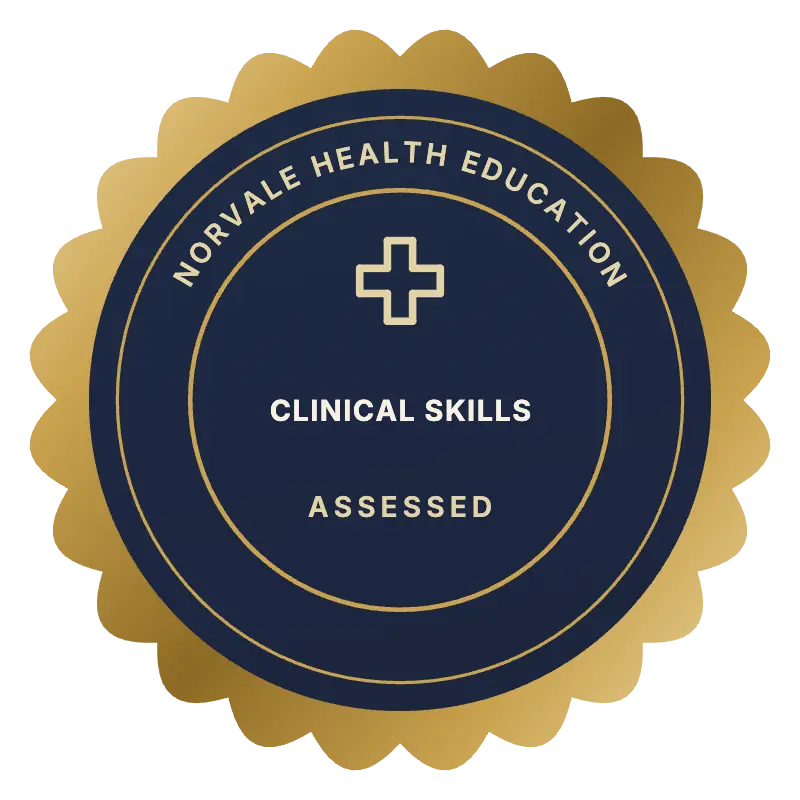
- One shape, one idea. A shield, a hexagon, a ring or a medal. Pick one and let it fill most of the square.
- Two to four words on the badge. "Python Developer" works. "Advanced Certificate in Applied Python for Data Teams, Level 2" does not. Put the long title in the data, not on the picture.
- Strong contrast. Dark text on a light shape or light text on a dark one. Avoid thin script fonts, which break apart when small.
- Your mark, not your full logo. A short monogram or a simple symbol reads better than a wide logo with a tagline.
- A level or year if it matters. "Level 2" or "2026" helps people tell versions apart, but only add it if you will keep it up to date.
- A see-through or plain background. The badge will sit on white, grey and dark mode screens. Test it on all three.


What goes behind the badge
The picture gets attention. The data earns trust. Every badge you send should come with these details, because they are what LinkedIn asks for and what a careful reader checks.
| Detail | Example | Where it shows |
|---|---|---|
| Credential name | Certified Data Analyst | LinkedIn entry title, credential page |
| Issuing organisation | Brightpath Data Academy | LinkedIn entry, with your logo if you have a LinkedIn page |
| Issue date | November 2026 | LinkedIn entry, credential page |
| Expiry date (optional) | November 2028 | LinkedIn entry, credential page status |
| Credential ID | BDA-2026-0142 | LinkedIn entry, credential page, verify page |
| Credential URL | A link to the person's credential page | The Show credential button on LinkedIn |
| Criteria | Passed a 40-question exam with 75% or more | Credential page |
| Skills | SQL, data cleaning, reporting | Credential page, and the skills the person picks on LinkedIn |
The criteria line matters more than most issuers think. "Completed the course" tells a reader very little. "Finished 8 weekly projects and passed a final review" tells them exactly what the person can do. Write it once in the credential settings and it appears on every badge page.
Step by step: create and send the badge
Step 1: Start a new design
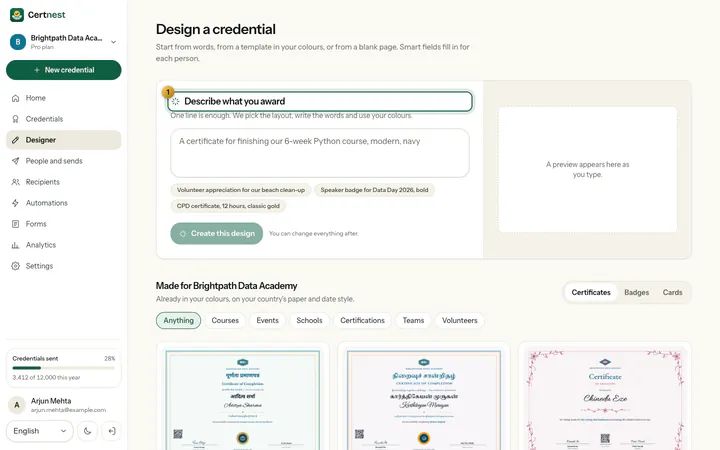
Open the Designer and describe what you award in one line, such as "badge for passing our data analyst exam". You can also pick a badge template that is already filled with your logo and colours.
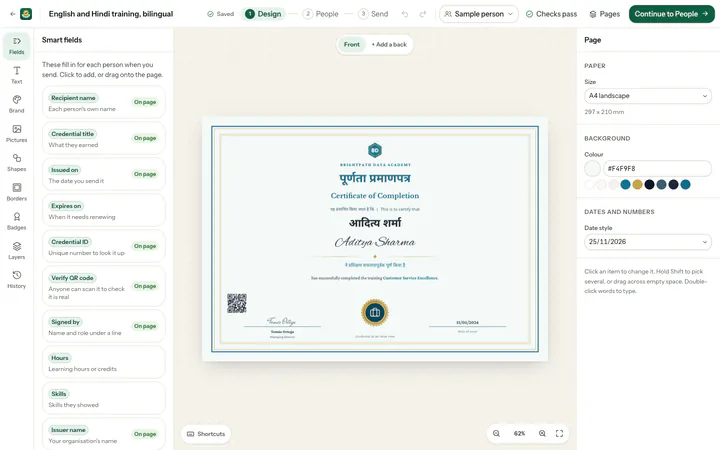
Step 2: Shape the badge and add smart fields
Change the shape, colours and words on the canvas. Keep the title short. Smart fields such as the person's name and the date are chips, so they fill in for each person when you send.
Step 3: Fill in the meaning
Give the credential its full name, criteria, skills and an expiry rule if it should expire. This is the data LinkedIn and your credential page will show.
Step 4: Add the people and send
Upload a file, paste a list or connect an online sheet. Certnest matches the columns, checks each row, and sends every person an email with their own badge page.
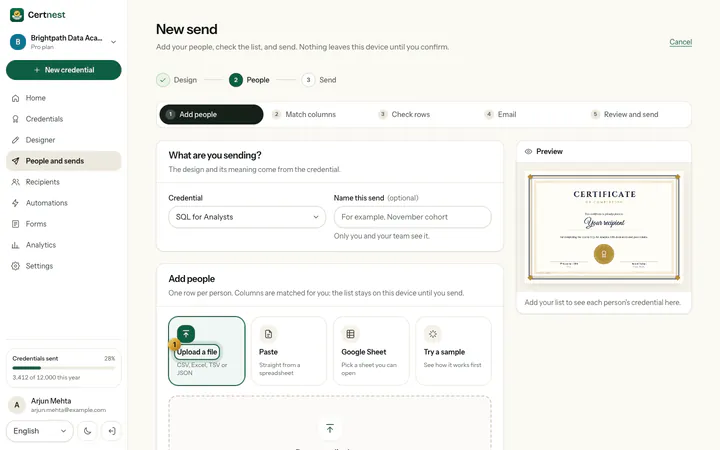
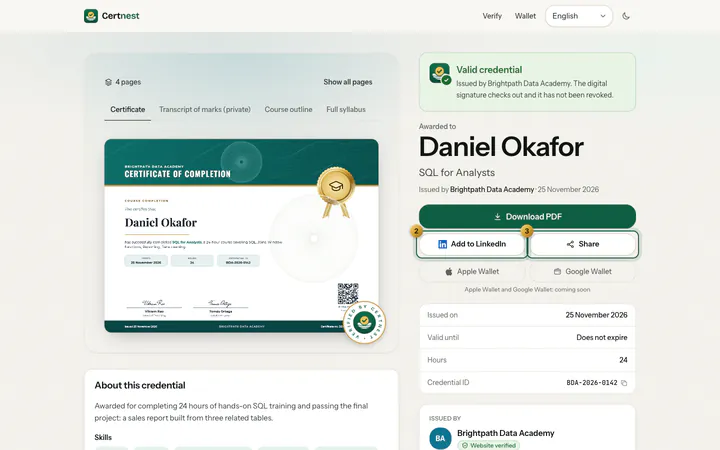
Step 5: The person adds it to LinkedIn
On their credential page, the person presses Add to LinkedIn. LinkedIn opens with the name, organisation, dates, credential ID and URL already filled in. They check it and save.
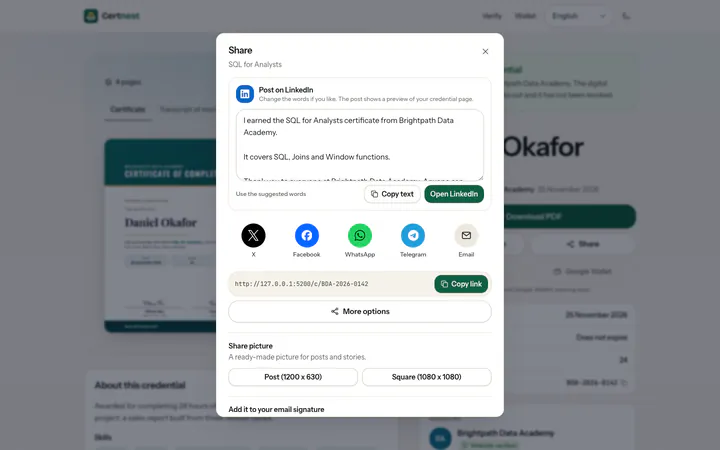
Step 6: They share it with a post
The Share button offers LinkedIn, WhatsApp, X, email and a copy link. A short post with the badge picture tells their network, and every view is a chance for someone to find your course.


Set up your organisation page on LinkedIn
When a person types your organisation into the Issuing organization field, LinkedIn suggests matching pages. If they pick your page, your logo appears next to their badge and the entry links back to you. If you have no page, the entry shows plain text and a grey placeholder.
- Create a LinkedIn page for your organisation if you do not have one, with your real logo and name.
- Find your page's company ID. It appears in the address of your page's admin view as a number.
- Add the ID to your Certnest organisation profile. Once your organisation has passed the issuer checks, the Add to LinkedIn button picks your page for the person, so they never choose the wrong one.
- Use exactly the same organisation name on LinkedIn, your website and your credentials. Small differences confuse people who search for you.
Help people share without feeling awkward
Many people feel shy about posting their own success. You can make it easier. Write a suggested post they can edit, keep it short, and make it about what they learned rather than about your company.
Short and warm
I just earned my Certified Data Analyst badge from Brightpath Data Academy. Eight weeks of real projects, and I loved every one.
Skills first
New skills this month: SQL, data cleaning and clear reports. Proud to have passed the Brightpath Data Analyst exam.
Thanks to the team
Thank you to my mentors at Brightpath Data Academy. I passed the final review and earned my analyst badge today.
Put one of these lines in your credential email and on the share sheet. People still choose their own words, but a starting point removes the blank page.
Keep every badge trustworthy over time
A badge is only as good as the page behind it. Three habits keep that page honest for years.
- Keep links alive. A LinkedIn entry with a broken credential URL looks worse than no entry. Certnest keeps credential pages live, also after a plan is cancelled.
- Use expiry when skills go stale. For safety training or licences, set an end date and send renewal reminders. The page shows the true status, valid or expired. Read more about expiring certifications and renewals.
- Revoke with a reason when needed. If a badge was sent by mistake, revoke it. The page then says so, and LinkedIn visitors see the truth.
Each Certnest badge is also signed with your organisation's key using the Open Badges 3.0 standard, so it can be checked without relying on our site. You can read how that works in Open Badges 3.0 explained.
Questions and answers
Does LinkedIn charge for adding a certification badge?
No. Adding an entry to Licenses and certifications is part of a normal LinkedIn profile. The person needs a LinkedIn account, and the issuer needs nothing from LinkedIn except, ideally, an organisation page so the logo shows.
What size should the badge picture be?
Design it as a square and export it at a few hundred pixels wide, so it stays sharp on high resolution screens. More important than the pixel size is how it reads when small: short words, one shape, strong contrast.
Why does my logo not show next to the badge on LinkedIn?
The logo appears only when the Issuing organization field is linked to your LinkedIn page. If the person typed the name as plain text, it shows a placeholder. Add your company ID to your Certnest profile so that, once your organisation is checked, the Add to LinkedIn button picks the right page for them.
Can people add the badge from a phone?
Yes. The credential page is built for phones first, and the Add to LinkedIn button opens the LinkedIn app or site with the fields filled in. They review the entry and save it.
What happens on LinkedIn if I revoke a badge?
The LinkedIn entry stays on the person's profile, because only they can delete it. But the credential URL now opens a page that clearly says the credential was revoked, so anyone who checks sees the real status.
Should the badge expire?
Only when the skill or licence truly needs renewing, such as first aid or safety training. Course completion usually does not expire. If you set an expiry date, it appears on LinkedIn and on the credential page.