On this page
Key takeaways
- Certificates go in the Licenses and certifications section of a LinkedIn profile.
- The credential URL is the most important field: it lets anyone check the certificate is real.
- Pick your organisation from LinkedIn's suggestions so its logo appears, instead of typing plain text.
- Issuers can add an Add to LinkedIn button that fills every field for the person.
You finished the course, passed the exam or completed the training. Now you want it on your LinkedIn profile, where colleagues and hiring managers will see it. LinkedIn gives certificates their own section, but its form has several fields, and small mistakes make an entry look less credible. This article walks through each field, first for the person adding the certificate, then for the organisation that issues it.
Where certificates go on LinkedIn
Certificates belong in Licenses and certifications. It sits below Experience and Education on your profile. If you have never used it, you may need to add the section first from the Add profile section button near the top of your profile, under the recommended sections.
Some people post a photo of their certificate in the feed instead. A post is great for telling your network, but it scrolls away within days. An entry in Licenses and certifications stays on your profile, shows up when people search for skills, and links to proof. The best approach is both: add the entry, then share a post about it.
The form, field by field
Here is every field in the form, what to type, and why it matters. The example is a certificate Kenji Watanabe earned from a fictional school.
| Field | What to enter | Example |
|---|---|---|
| Name | The exact title on your certificate, without extra words | Certified Data Analyst |
| Issuing organization | Start typing and pick the organisation from the list so its logo shows | Brightpath Data Academy |
| Issue date | Month and year you received it | November 2026 |
| Expiration date | Only if the certificate has an end date; leave empty if it does not expire | November 2028 |
| Credential ID | The ID printed on the certificate or shown on its page | BDA-2026-0142 |
| Credential URL | The link to your certificate's own page, not the course home page | Your personal credential page link |
| Skills | Up to a handful of skills the certificate proves | SQL, Data cleaning, Reporting |
| Media | Optional: the certificate image or PDF | certificate.pdf |
Name
Copy the title exactly as it appears on the certificate. Do not add the organisation name, the year or words like "successfully completed". Those details have their own fields, and a clean title is easier to read in search results.
Issuing organization
As you type, LinkedIn suggests organisations that have a LinkedIn page. Pick the right one from the list. This puts the organisation's logo next to your entry and links to its page. If you type the name and do not pick a suggestion, the entry shows only text with a grey placeholder picture.
Issue date and expiration date
Use the date on the certificate. Fill in the expiration date only when the certificate really expires, such as a first aid or safety certificate. Leave it empty for a course you completed, because completion does not expire.
Credential ID and credential URL
These two fields turn a claim into proof. The credential ID is the code on your certificate. The credential URL is the address of the page that shows your certificate and its status. When someone presses Show credential on your profile, LinkedIn opens that URL. If it leads to a page that says "valid" and shows your name, the reader trusts it in seconds.
Skills and media
Add the skills the certificate proves. They appear on your entry and help your profile come up when recruiters search for them. Media is optional: you can attach the certificate picture or PDF, which makes the entry more visual.
The one-tap way: Add to LinkedIn
When your certificate was sent with Certnest, you do not need to type anything. Open the email, go to your credential page and follow these steps.
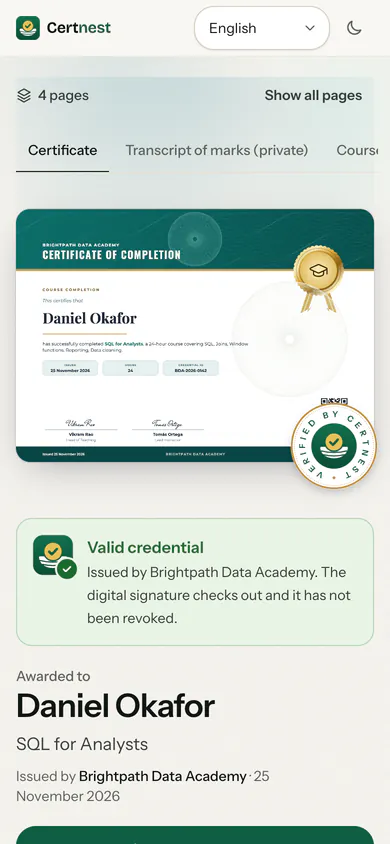
Step 1: Open your credential page
Press the button in your email. Your certificate opens on its own page, with a clear status that says it is valid. No account is needed.
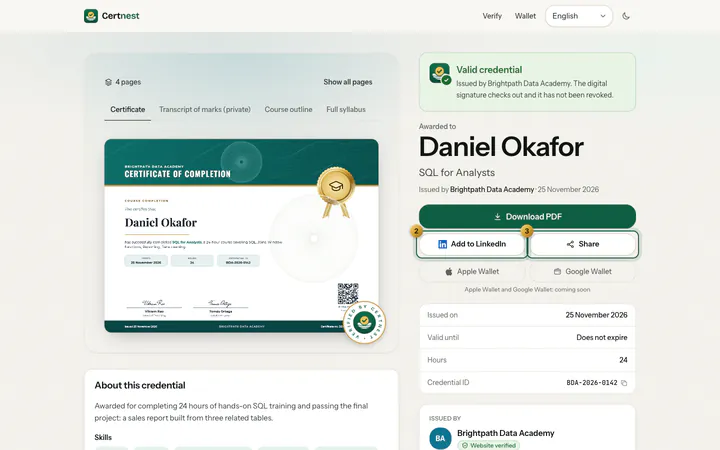
Step 2: Press Add to LinkedIn
LinkedIn opens in a new tab, or in the app on a phone. Sign in if it asks.
Step 3: Check the filled form
The name, organisation, issue date, expiry date, credential ID and credential URL are already there. Check your name and the dates, add skills if you like, then press Save.
Step 4: Share a post if you want
Back on your credential page, the Share button offers LinkedIn, WhatsApp, X, email and a copy link, with a picture of your certificate ready to post.
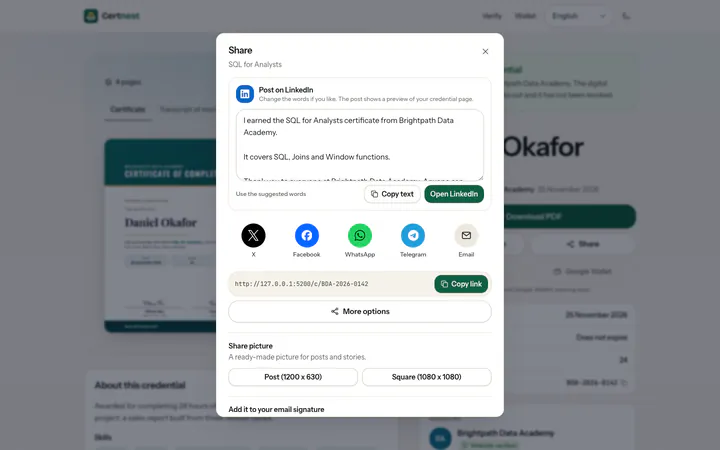


Lost the email? Go to the wallet, sign in with a code sent to your email address, and every credential sent to you is there. Our help article on adding a credential to LinkedIn has more detail.
Common mistakes to avoid
- Pasting the course home page as the credential URL. It shows the course, not your result. Use the link to your own certificate page.
- Typing the organisation as plain text. Pick it from the list so the logo appears. If the organisation has no LinkedIn page, plain text is fine.
- Adding an expiry date that does not exist. It can make a valid certificate look out of date.
- A different name than on the certificate. If your certificate has a spelling mistake in your name, ask the issuer to fix it before you add it. Read how to fix your name.
- A long title full of extra words. "Advanced Python" reads better than "Successfully completed the Advanced Python programme 2026".
- A screenshot instead of the real file. If you attach media, use the PDF or the full picture from your credential page, not a cropped photo.
For issuers: make the form fill itself
If you run courses, exams or training, every manual field is a chance for a mistake. A wrong date, a typo in the title or a missing link makes your credential look weaker, even when the person did great work. You can remove that risk.
- Give every credential its own page. Each person needs a unique credential URL with their name and status, not a shared link.
- Print a credential ID. A short, readable ID like BDA-2026-0142 is easy to type and search.
- Offer an Add to LinkedIn button. LinkedIn supports a prefilled link that carries the title, organisation, dates, ID and URL. Certnest adds it to every credential page and email.
- Keep one organisation name everywhere. Use the same name on your LinkedIn page, your website and your credentials, so people pick the right page.
- Keep the pages online. A credential URL that stops working makes every LinkedIn entry pointing to it useless. Certnest keeps credential pages live, also after a plan ends.
After you add it
Look at your profile as a visitor would. On LinkedIn you can view your profile in public mode to check. The entry should show the title, the organisation logo, the dates and a Show credential button. Press the button yourself to make sure the page opens and says valid.
If you want people to know, write a short post. Say what you learned and thank the people who helped. That is often more interesting to readers than the certificate itself, and it invites questions from people who might want to take the same course.
Questions and answers
Can I add a certificate to LinkedIn from my phone?
Yes. In the LinkedIn app, open your profile, add a section and choose Licenses and certifications. If your certificate has an Add to LinkedIn button, pressing it on your phone opens the app with the form filled in.
What if my certificate has no credential ID?
Leave the field empty. The credential URL is more important, because it lets people check the certificate. If you have neither, ask the issuer whether they offer a page you can link to.
Can I edit the entry later?
Yes. Open your profile, find the entry in Licenses and certifications and press the pencil icon. You can change any field or delete the entry.
Will my network be told when I add a certificate?
LinkedIn may offer to share the update with your network when you save. You can choose not to. If you want to tell people, a short post written in your own words usually gets more attention.
The organisation I studied with has no LinkedIn page. What should I do?
Type its name as plain text. Your entry still shows the name and dates, only without a logo. The credential URL still works for anyone who wants to check it.
Is a PDF upload enough proof?
A PDF is a nice picture, but anyone can edit a PDF. A credential URL that opens a live page with a valid status is much stronger proof, because the issuer controls that page.