How to add a certificate to Apple Wallet or Google Wallet
The short answer
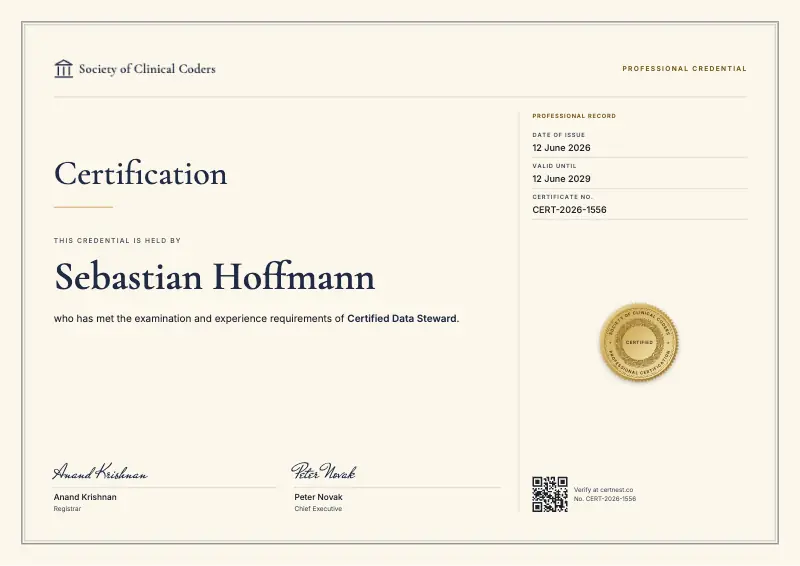
Open your credential page on your phone and tap Add to Apple Wallet or Add to Google Wallet. The pass shows your name, the credential and a QR code anyone can scan to check it.
- 2 minutes
- 5 steps
- For recipients, and issuers deciding whether to offer wallet passes
Step by step
- 1
Open the credential on your phone
Open the link from your certificate email on the phone you use.
- 2
Tap the wallet button
iPhone users see Add to Apple Wallet. Android users see Add to Google Wallet.
- 3
Confirm
Check the preview and tap Add. The pass is saved in your wallet.
- 4
Show it when asked
Open the pass and let the other person scan the QR code to verify it.
- 5
For issuers: switch it on
Wallet passes come with Pro and above. Turn them on in the credential settings.
What this guide covers
- Why keep credentials in your wallet
- Adding on iPhone
- Adding on Android
- What the pass shows
- How issuers turn on wallet passes