How to share your certificate on social media
The short answer
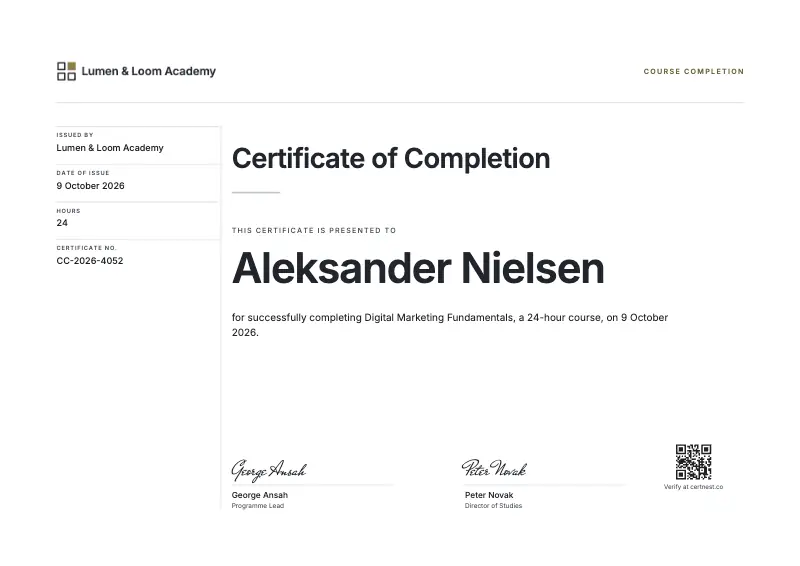
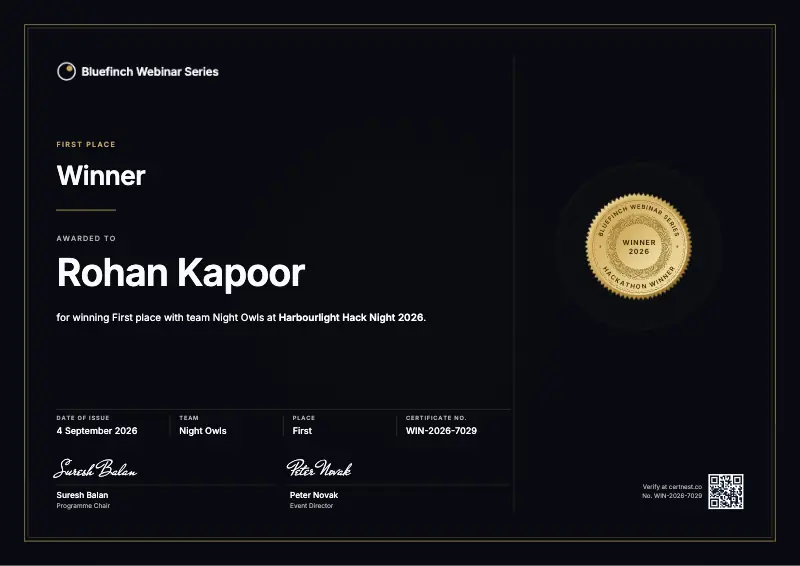
Open your credential page and tap Share to post the link, which shows a clean preview of your certificate. Write one or two lines on what you learned and thank the people who helped.
- 3 minutes
- 5 steps
- For recipients, and issuers who want more shares
Step by step
- 1
Make the page public
Credential pages are private by default. Switch it to public if you want it seen by anyone with the link.
- 2
Tap Share
Pick LinkedIn, WhatsApp, X or email, or copy the link.
- 3
Write a short post
Say what you learned, one thing you will use, and thank the trainer or team.
- 4
Tag the issuer
Tag the organisation so others can find the course or event.
- 5
Add to your profile too
A post fades. Also add the certificate to your LinkedIn profile.
What this guide covers
- Why share a link, not a screenshot
- Writing a post people read
- Sharing on LinkedIn
- Sharing on WhatsApp and other apps
- Privacy settings for your page