How to verify a certificate
The short answer
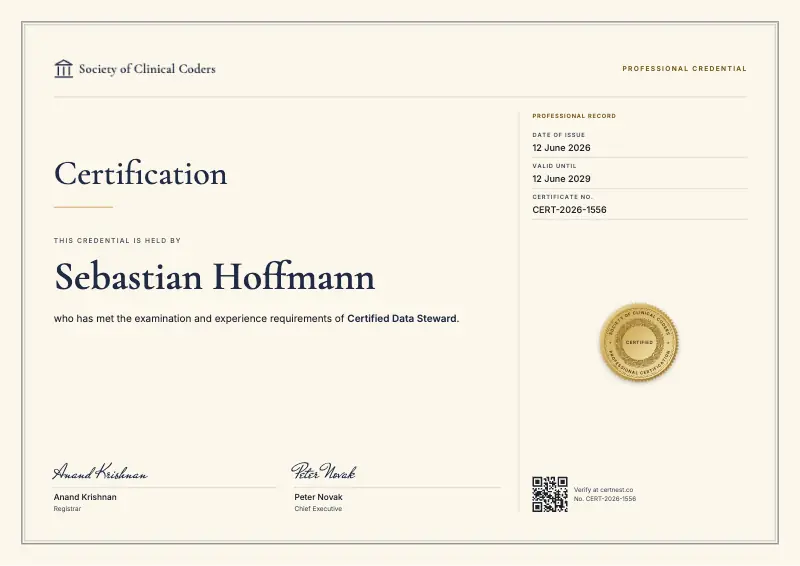
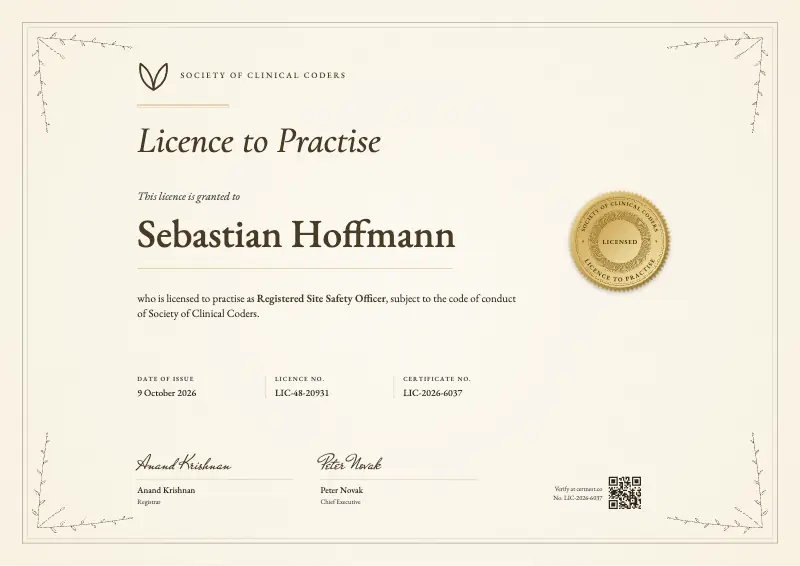
Scan the QR code on the certificate or open its credential link, and the issuer's page shows if it is valid, expired or revoked. If there is no code or link, enter the credential ID on the verify page or ask the issuer directly.
- 2 minutes
- 6 steps
- For employers, admissions teams and anyone checking a certificate
Step by step
- 1
Find the QR code or link
Most digital certificates carry a QR code or a credential link. Some only print a credential ID.
- 2
Scan or open it
Scan the QR code with a phone camera, or open the link. Check the web address belongs to the issuer or the platform it names.
- 3
Read the status
You see valid, expired or revoked, with a reason when there is one.
- 4
Check the details match
Compare the name, title and dates on the page with the copy you were given.
- 5
Check the issuer
Look at who issued it and whether the issuer is verified. Open the issuer's profile if you are unsure.
- 6
Check a file
Got a PDF or a badge file? Drop it on the verify page to check its digital signature.
What this guide covers
- What makes a certificate checkable
- Using the QR code
- Using the credential ID
- Reading valid, expired and revoked
- Checking a signed file
- When there is no link at all