How to verify a certificate online
Four quick ways to check a certificate, what the checks really prove, and a simple routine for employers and admissions teams.

By the Certnest team
6 min read

On this page
Key takeaways
- Check the certificate at the source: its QR code, its link or its ID on the issuer's verify page.
- A good check looks at four things: the signature, the issuer, revocation and dates.
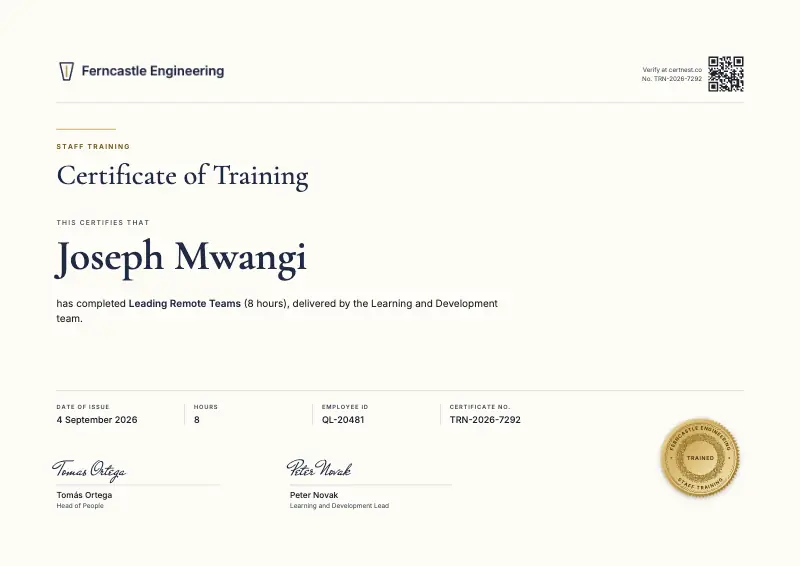
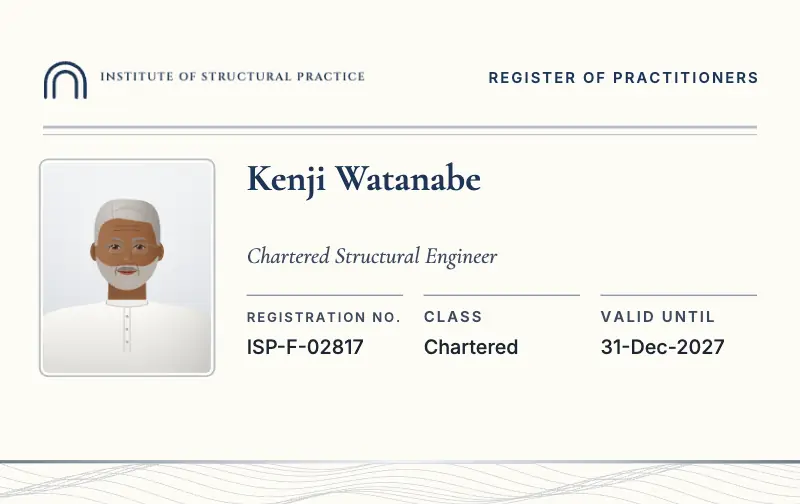
- A picture or PDF on its own proves nothing, because anyone can edit one.
- Make sure the name on the result matches the person in front of you.
- When in doubt, contact the issuer through their own website, not through a link in the document.
A certificate on a CV or in an email looks convincing, but a picture is easy to change. If you hire people, admit students or approve suppliers, you need a quick way to know a certificate is real. The good news is that a well-made digital certificate can be checked in under a minute, without phone calls or emails. This article shows the four ways to check, what each result means, and the warning signs to look out for.
Four ways to check a certificate
Most digital certificates offer at least one of these. They all lead to the same place: a page run by the issuer that shows the certificate's real status.
| Method | How it works | Best when |
|---|---|---|
| QR code | Scan the code on the certificate with a phone camera | You hold a printed copy or a PDF |
| Credential ID | Type the ID printed on the certificate into the issuer's verify page | The QR code is damaged or missing |
| Link | Open the credential URL, for example from a LinkedIn entry | You are looking at a profile online |
| File drop | Drop the PDF, picture or signed JSON file on a verify page | Someone sent you the file itself |
Step by step: check a Certnest credential
Step 1: Open the verify page
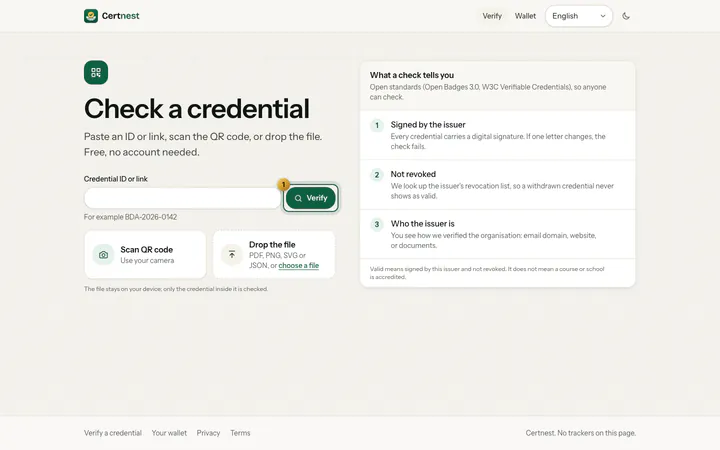
Go to the verify page. You do not need an account. You can paste an ID or link, scan a QR code with your camera, or drop a file.
Step 2: Enter what you have
Paste the credential ID, such as BDA-2026-0142, or the link. If you have the PDF or a badge picture, drop it in; the file is checked in your browser and the credential inside it is sent for the check.
Step 3: Read the result
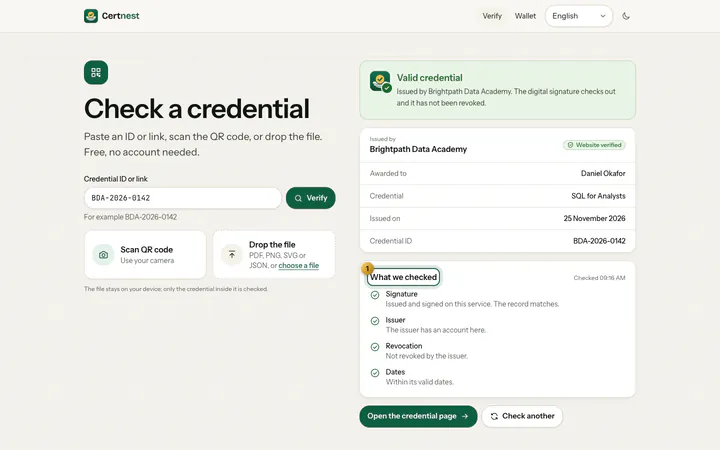
The page shows a clear status at the top: valid, expired or revoked, with the reason. Below it, the list of checks shows what was tested and when.
Step 4: Look at the issuer
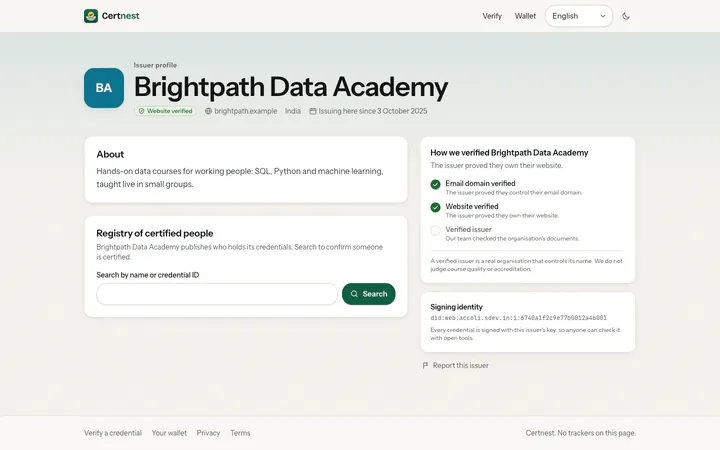
Open the issuer's public page to see who they are and which checks they passed, such as a confirmed email domain or website.
Step 5: Match the person
Compare the name on the result with the person who gave you the certificate. A real certificate belonging to someone else is still not their certificate.


What each check means
A verify page should not just say "valid". It should tell you what it checked. These four checks together give you real confidence.
Signature
The issuer signed the credential with a digital key. The check confirms the credential came from that issuer and that nothing in it changed: not the name, not the date, not the title. Certnest credentials follow the Open Badges 3.0 standard, so the signature can be checked with open tools, not only ours. Read more in Open Badges 3.0 explained.
Issuer
Who stands behind the signature? A signature proves the credential came from a certain account. The issuer check tells you about that account: does it have a confirmed email domain, a website that links back, or documents that were checked? An issuer called "Global University" with no checks deserves a second look.
Revocation
Issuers can withdraw a credential, for example if it was sent by mistake or a licence was suspended. The check looks up the credential's current status. A credential that was valid last year may be revoked today, which is why a live check beats an old screenshot.
Dates
Some credentials expire, such as first aid, safety training or professional licences. The check confirms the credential is within its valid dates. An expired credential was real, but it no longer proves the person is current.
Red flags to watch for
- No way to check at all. No QR code, no ID, no link. It may be genuine, but you will need to contact the issuer.
- A verify link on an unfamiliar web address. Fake documents sometimes link to look-alike pages. Check the address carefully.
- The name does not match. The person's name on the verify result is different, or spelled very differently.
- Details differ from the document. The verify page says one course, the PDF says another, or the dates disagree.
- Pressure to skip the check. "The link is broken, just trust the PDF" is a reason to look harder, not less.
- A blurry or edited QR code. If a code will not scan, type the ID instead, and be careful if neither works.
For a longer list of warning signs, see our guide on how to check if a certificate is fake.
A simple routine for employers
If your team checks certificates often, a short written routine keeps everyone consistent and fair. Here is one that works for most hiring and admissions teams.
- Ask candidates for the credential link or ID, not only a PDF.
- Check each one on the issuer's verify page and note the result and date in your records.
- Match the name and, where it matters, the dates and the level.
- For roles that need a current licence, check again before the start date.
- If a check fails, give the person a chance to explain. Mistakes happen, such as a name change or a corrected certificate with a new ID.
- Contact the issuer through their own website if you still have doubts.
For issuers: make checking easy
Every time someone checks your credential easily, your organisation looks more professional. Put a QR code and an ID on every certificate, keep your verify pages online for good, and explain your checks in plain words. Our guide how to verify a certificate has the short version, and QR codes on certificates covers placement and sizing.
Questions and answers
Can I verify a certificate without an account?
Yes. On Certnest, the verify page works for anyone without signing in. Paste the ID or link, scan the QR code, or drop the file.
What if the QR code does not scan?
Type the credential ID printed on the certificate into the verify page. If the certificate has neither a working code nor an ID, contact the issuer through their own website.
Does a valid result mean the person really did the course?
It means the issuer issued that credential to that name, and it has not been changed or revoked. You still need to match the name to the person, and the value of the course depends on the issuer.
Why does a credential show as expired?
Some credentials have an end date, such as safety training or a licence. Expired means the credential was real but its valid period has passed. The person may have a newer, renewed credential.
Is a PDF with a signature line enough?
A handwritten or typed signature on a PDF is easy to copy. A digital signature that a verify page checks is far stronger, because any change to the file breaks it.
Can I check a file someone emailed me?
Yes. Drop the PDF, the badge picture or the signed JSON file on the verify page. Certnest reads the credential inside the file and runs the same checks.