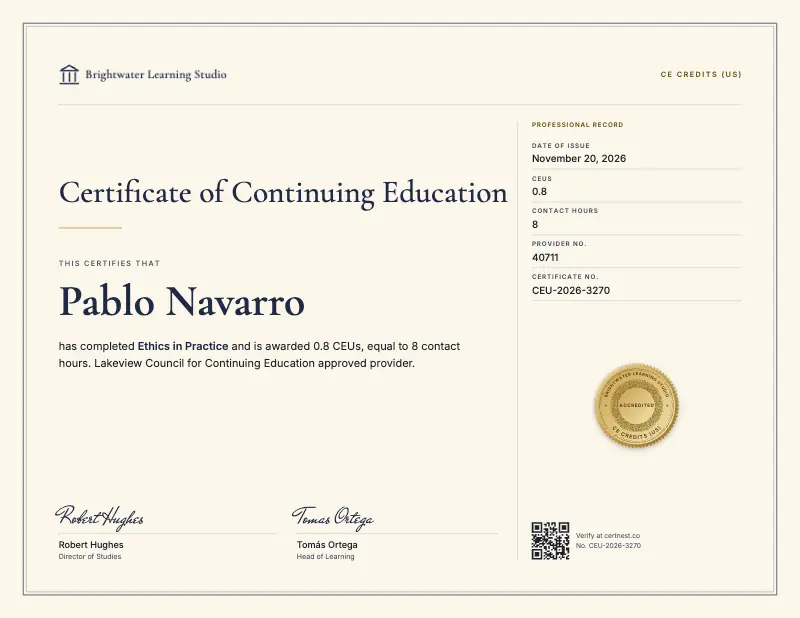
QR codes on certificates: what to link, how big, and where
A QR code turns a printed certificate into a live record anyone can check. Here is what it should point to, how to size it for print and how to test it.

By the Certnest team
8 min read

On this page
Key takeaways
- Point the QR code at the live credential record, never at a PDF file that can be copied or edited.
- Print the code at least 2 cm (about 0.8 in) wide, with a clear white border around it.
- Dark code on a light background, no logos stretched over it, and no fancy colours that phones cannot read.
- Test every new design with at least three different phones, in good and poor light.
- After a scan, the person should see the status (valid, expired or revoked) before anything else.
A certificate on paper looks the same whether it is real or not. A QR code changes that. One scan with a phone camera opens the live record, and the person holding the paper can see who issued it, who it belongs to and whether it is still valid. This guide explains how to do it well: what the code should link to, how big to print it, where it belongs on the page, and how to test it before you send hundreds of copies.
Why put a QR code on a certificate
People check certificates at busy moments: an employer during hiring, a client before a contract, a school office during admissions. They want an answer quickly and they do not want to email anyone. A QR code gives them that answer in a few seconds, with no app to install and no account to create.
It also helps the person who earned the certificate. When an employer can check it in one scan, the certificate carries more weight. And it helps you, the issuer, because every scan is a visit to a page you control, with your name and your logo on it.
What the QR code should point to
This is the most important choice, and the one most often done badly. The code should open the live record of the credential, hosted by the issuer or the issuer's platform. It should not open a PDF stored in a shared folder, a picture of the certificate, or your home page.
- A live record can change. If you revoke a certificate, or it expires, the page says so. A PDF says the same thing forever.
- A live record is hard to fake. Anyone can make a copy of a PDF and change the name. They cannot change the record on your page.
- A live record names the person. The page shows the name, the title, the date and the ID, so the checker can compare it with the paper in their hand.
In Certnest every credential has its own page at a short address with its ID, and the QR code on the design links straight to it. If you set up your own verify domain on a paid plan, the code uses your domain instead.
How big to print it
A QR code that is too small is the most common reason a scan fails. Phone cameras need enough pixels per square of the code to read it, and the paper is often held at an angle or in poor light.
| Where it is printed | Smallest size that scans well | Comfortable size |
|---|---|---|
| A4 or Letter certificate | 2 cm (0.8 in) wide | 2.5 to 3 cm (1 to 1.2 in) |
| ID card or member card | 1.5 cm (0.6 in) wide | 1.8 to 2 cm (0.7 to 0.8 in) |
| Event badge on a lanyard | 2 cm (0.8 in) wide | 3 cm (1.2 in) or more |
| Poster or wall certificate seen from afar | 3 cm (1.2 in) wide | Larger, scaled to distance |
A simple rule of thumb: the distance someone will scan from should be no more than about ten times the width of the code. A 2.5 cm code reads well from 25 cm away, which is how most people hold a sheet of paper.
Keep the link short. A shorter address makes a code with fewer, larger squares, and those scan more easily at the same printed size. This is one reason credential links use a short ID rather than a long string of words.
The quiet zone and contrast
Every QR code needs a clear margin around it, called the quiet zone. The standard asks for a border at least four modules wide, where a module is one small square of the code. In practice, leave a clean white border of about 4 mm around the code on a certificate, and do not let borders, signatures or seals creep into it.
- Dark on light. Print the code in a dark colour on a light background. Black on white is the safest. Deep navy or deep green on cream also works.
- Never light on dark. Many phone readers struggle with an inverted code, white squares on a dark background.
- No pattern behind it. Guilloche lines, watermarks and photos make the code harder to read. Give it a plain patch of paper.
- No gold foil on the code. Shiny inks reflect light and can make a code unreadable under office lamps.
Where to place it on the certificate
Put the code where it does not compete with the name and the title, but where a checker will find it without searching. Most designs place it in a lower corner, next to the credential ID and a short line of text.
- Lower right or lower left corner, inside the border, away from the signature line.
- Next to the credential ID, so someone without a phone can type the ID on your verify page instead.
- With a short label under it, such as "Scan to check this certificate", so people know what it is for.
- On the same side as the name, if the certificate is printed on both sides.
Avoid placing it over a fold line if certificates are posted, and keep it at least a few millimetres inside the trim edge if a print shop cuts the paper.
What a person should see after scanning
The page that opens matters as much as the code itself. Someone who scans a certificate wants to know one thing first: is it real and still valid? A good credential page answers that at the top, in words and with an icon, not only with a colour.

- The status: valid, expired with the date, or revoked with the reason the issuer gave.
- The person's name and the credential title, to compare with the paper.
- The issuer, with how their identity was checked, such as a verified email domain or website.
- The dates: when it was issued and, if it has one, when it ends.
- A way to check more deeply, for people who want to see the digital signature itself.
Certnest's verify page shows each check in plain words: the signature, the issuer, whether it was revoked and whether the dates are in range. Anyone can open it, with no account.

How to test before you print
A code that scans on your own phone on your desk may fail in a hall with poor light. Test properly once for each new design, and you will not need to reprint later.
Step 1: Print one real copy
Print on the same paper and printer you will use for the batch. Screens are much easier to scan than paper, so a screen test is not enough.
Step 2: Scan with three different phones
Use at least one older phone and one with a different operating system. Use the built-in camera app, since that is what most people will use.
Step 3: Try poor light and an angle
Scan under a dim lamp and with the paper held at an angle. If it fails, make the code larger or improve the contrast.
Step 4: Check where it lands
Make sure the code opens the right person's record, with the right name and status. Then revoke a test credential and scan again to see the revoked message.
For step-by-step help adding the code in the designer, see our guide on how to add a QR code to a certificate.
Common mistakes to avoid
- Linking to a file in a shared drive, which can be moved, deleted or copied.
- Using a link shortener you do not control. If it closes, every printed code breaks.
- Printing the code too small to fit a busy design.
- Placing the code on a patterned background or under a seal.
- Forgetting the ID next to the code, so people without a camera have no way in.
- Changing domains later without keeping the old links working.
The last point deserves care. A printed certificate may sit in a drawer for twenty years. The address in its code should keep working for that long, which is why credential links should live on a domain you plan to keep. Certnest keeps credentials live for good, even after you cancel a plan.
If you are thinking about the bigger picture of trust, read how to stop fake certificates and how to verify a certificate online.
Questions and answers
Does every certificate need its own QR code?
Yes, for real verification. A code linked to one person's record lets the checker see that person's name and status at once. A single shared code can only open a general page where people type an ID.
What is the smallest QR code I can print on a certificate?
About 2 cm (0.8 in) wide on a full-size certificate scans well with most phones. Leave a clear white border around it and print it dark on a light background.
Can I put my logo inside the QR code?
A small logo usually still scans, because QR codes can correct for some damage. On certificates it is better to keep the code clean and place your logo beside it, so a fold or mark does not stop it working.
What happens when someone scans a revoked certificate?
The page shows that it was revoked, with the date and the reason the issuer gave. That is the main advantage of linking to a live record instead of a file.
Will the QR code still work if I stop paying for the service?
With Certnest, yes. Credentials stay live, also after you cancel, so printed codes keep opening the record.
Can someone check a certificate without a phone?
Yes. Print the credential ID next to the code. Anyone can type that ID on the verify page to see the same record.