A tour of Certnest: everything you can do, screen by screen
Certnest helps organisations design, send and verify certificates and badges. This tour walks through each part of the product, with real screens, so you know what to expect.

By the Certnest team
6 min read

On this page
- 1.Home: what to do next
- 2.Design: start from a sentence or a template
- 3.People: add your list
- 4.Send: and watch it happen
- 5.The recipient page: made for phones
- 6.Verify: one click, no account
- 7.The wallet: every credential in one place
- 8.Automations, analytics and settings
- 9.Plans and the promises on every plan
- 10.Questions and answers
Key takeaways
- Certnest is built around three steps that are always visible: Design, People and Send.
- Every recipient gets a credential page made for phones, with download, LinkedIn and sharing, and no account needed.
- Anyone can check a credential in one click on the verify page, which shows each check in plain words.
- Automations, analytics, an API and team settings are there when you need them, and out of the way when you do not.
- Every plan includes free corrections and resends, credits that roll over, and credentials that stay live for good.
Certnest is a service for organisations that award things: courses, training, events, memberships, achievements and IDs. You design a credential, add the people who earned it, and send it. Each person gets a credential they can download, share, add to LinkedIn and keep. You see who opened, shared and checked it. This tour walks through the product screen by screen, in the order you would use it.
Home: what to do next
When you sign in, Home shows what needs your attention. On your first visit there is a short setup checklist: add your logo and colours, design your first credential, send one to yourself and invite your team. After that, Home shows the last seven days at a glance, alerts that need a look, such as bounced emails or credentials that expire soon, and your recent sends with live progress bars.

Design: start from a sentence or a template
The designer starts with a simple question: what do you award? Type one plain sentence, such as "Certificate for finishing our 6-week Python course, modern, navy", and Certnest suggests a matching design with a title and printed lines. Or pick from the template library, already filled with your logo and colours, and filtered by what you award: courses, events, schools, certifications, teams or volunteers.

In the editor, smart fields such as the recipient's name, the date, the credential ID and the QR code are chips you drop onto the page, not tags you type. The live preview uses real names from your list, so you see a long name fit before you send. Before sending, the designer checks that long names fit, the QR code is there, the contrast is good and the required fields are filled.
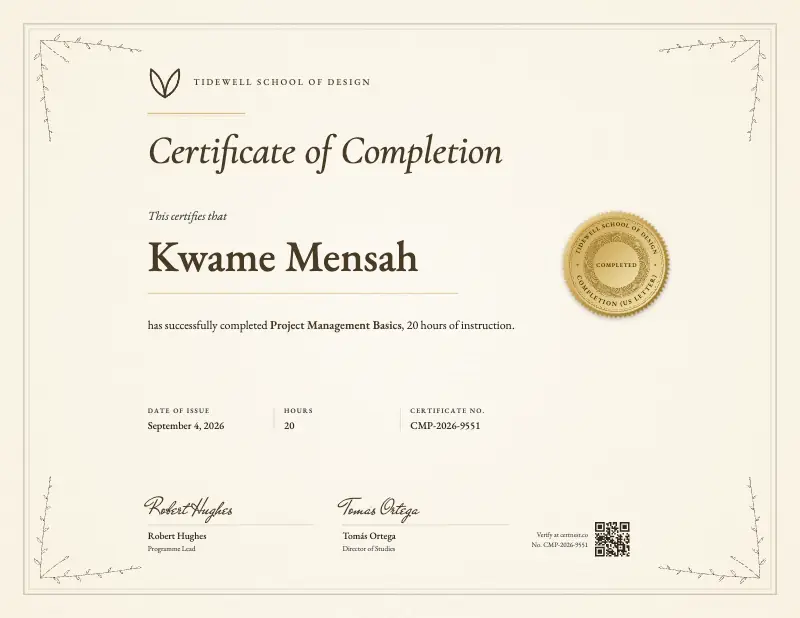
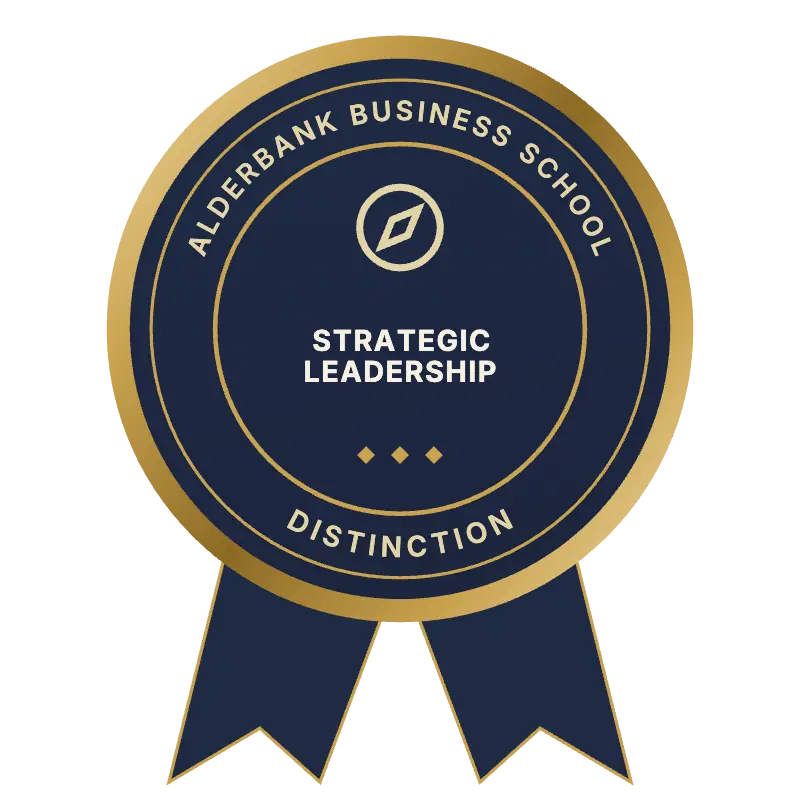
A credential in Certnest is more than a design. It also carries its meaning: title, description, skills, criteria, hours or credits, an expiry rule and the language. Types include certificates, digital badges, a certificate with a badge, ID cards, event badges and membership cards.
People: add your list
Next, add the people who earned the credential. Upload a CSV or Excel file, connect an online spreadsheet, or paste rows straight from a sheet. Certnest matches your columns to the right fields, then checks every row for duplicates, email addresses that look wrong and missing fields, before anything is sent. You can preview any row as the finished credential.
For a full walk-through, read how to send certificates in bulk from a spreadsheet.
Send: and watch it happen
Send now, schedule for later, or just download the files. Once a send starts, its live board shows every person's status: queued, sent, delivered, opened, viewed, downloaded, added to LinkedIn, bounced or complained. From the board you can resend to one person, correct a name and reissue, or remind people who have not opened yet.

The recipient page: made for phones
Each person gets their own credential page, with no account needed. It shows the credential, their name, the title, the issuer with how they were checked, the dates, the skills and the status. From there they can download a PDF or an image, add the credential to their LinkedIn profile with the details already filled in, share it on WhatsApp, LinkedIn, X or by email, or copy the link. They can also download the signed Open Badge.

Credential pages are unlisted by default, so search engines do not show them. The recipient can choose to make theirs public.
Verify: one click, no account
Anyone can check a credential on the verify page. Paste an ID or a link, scan the QR code with a camera, or drop the PDF or JSON file. The result shows the status in words and every check that was made: the digital signature, the issuer, whether it was revoked and whether the dates are in range.

Credentials are signed with your organisation's own key using open standards, Open Badges 3.0 and the W3C Verifiable Credentials Data Model 2.0, so they can be checked without us. Read Open Badges 3.0 explained to learn more.
The wallet: every credential in one place
Recipients can sign in to the wallet with a code sent to their email, with no password. It shows every credential sent to that address, from any issuer that uses Certnest. From the wallet they can choose which credentials are public, ask the issuer to fix a name, download everything, or delete their copy.

Automations, analytics and settings
Once the basics are in place, these parts help you do more with less work.
- Automations send credentials on their own. Each one is a trigger, such as a new row in a sheet, a form answer, a webhook or a course platform event, plus a credential and rules, such as a score of at least 70 or attendance of at least 80 percent.
- Analytics show the funnel for each send and each credential: sent, delivered, opened, downloaded, LinkedIn adds and verifications, with CSV export. Read measuring credential ROI.
- Recipients is a directory across all your sends, where you can search, see a person's history, correct, revoke with a reason and change end dates.
- Settings hold your organisation profile and public issuer page, brand kit, email sender and domains, members and roles, single sign-on, API keys and webhooks, billing and usage, data export and the audit log.
- Developers can issue credentials from their own app with the API and receive webhooks. See developers.
Plans and the promises on every plan
There is a Free plan with 1,000 credentials a year and unlimited members, Pro and Business plans for larger volumes and more brand control, Enterprise for custom needs, and a one-time Event pass for a single event. Every plan includes the designer and all templates, email delivery, the credential page, verification, QR codes, LinkedIn, Open Badges 3.0 and the wallet. Verified nonprofits, charities, schools, colleges and universities get 30% off Pro and Business. See pricing for the details.
Moving from another tool? Read how to move your certificates from another platform, or see switch to Certnest.
Questions and answers
What can I make with Certnest?
Certificates, digital badges, a certificate with a badge, ID cards, event badges and membership cards. Each one has a design and a meaning, such as skills, hours and an expiry rule.
Do recipients need an account?
No. Every recipient gets a credential page they can open, download and share without an account. The wallet is optional and uses a code sent to their email.
How do employers check a Certnest credential?
They scan the QR code, open the link, or type the credential ID on the verify page. It shows the status and each check in plain words, with no account needed.
Is there a free plan?
Yes. The Free plan includes 1,000 credentials a year, unlimited members, the designer, all templates and verification.
What happens to credentials if I cancel?
They stay live. Credentials keep working after you cancel or get a refund, so your recipients never lose them.
Can I send credentials automatically?
Yes. Automations send a credential when a trigger fires, such as a new row in a sheet, a form answer, a webhook or a course platform event, following rules you set.