How to send certificates automatically after a Google Form
The short answer
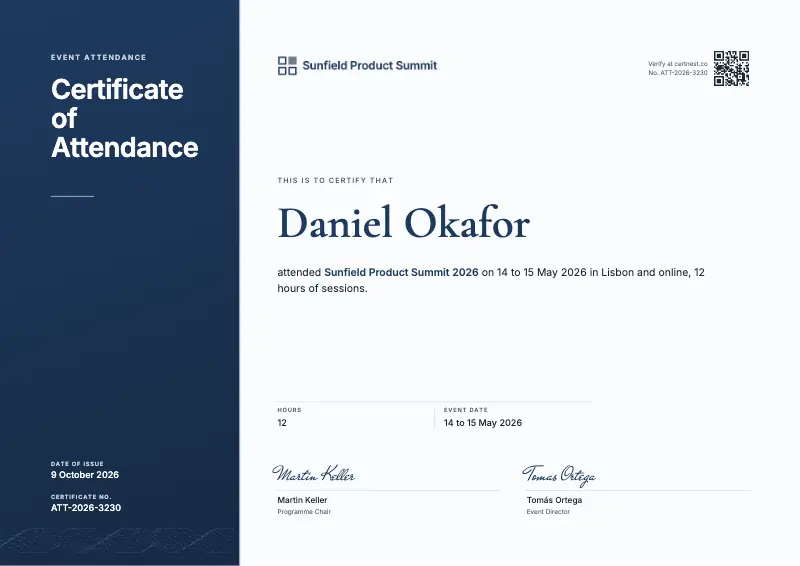
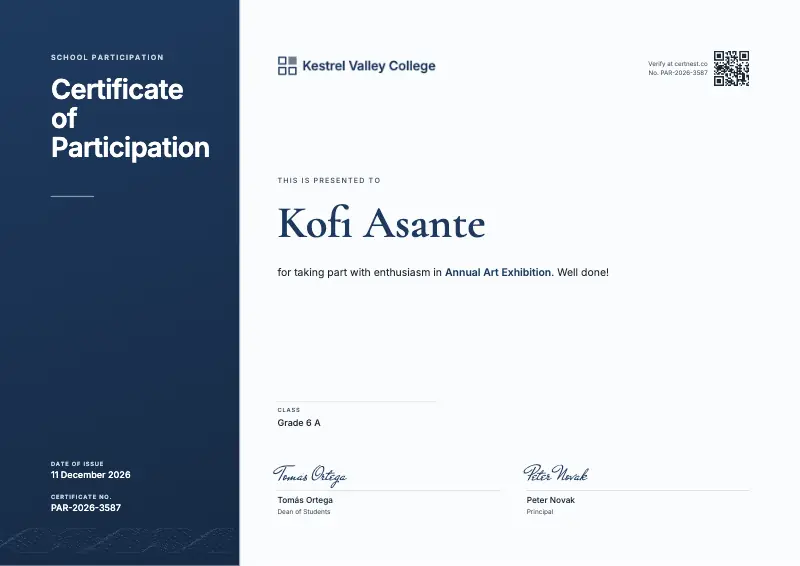
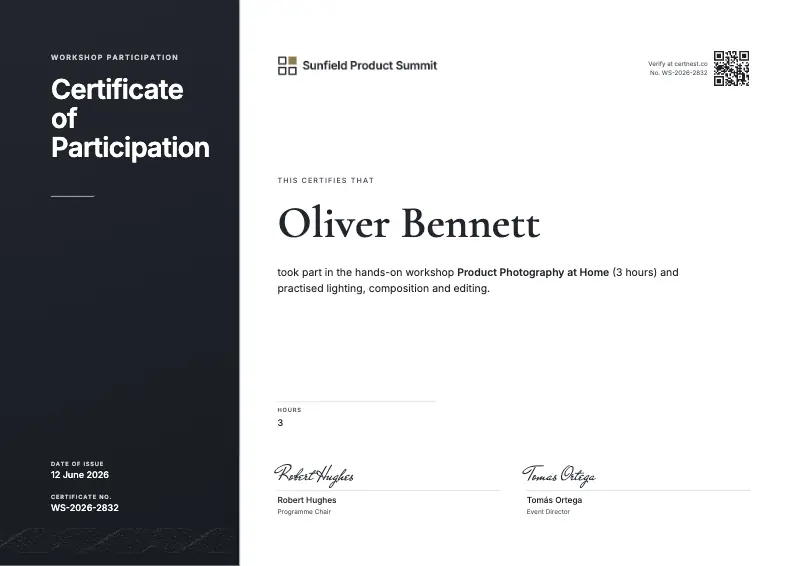
Connect the form to a credential and match its name and email answers to your fields. Each new submission that meets your rules gets a certificate by email within minutes.
- 10 minutes
- 6 steps
- For event hosts, teachers and trainers who use forms for feedback or quizzes
Step by step
- 1
Ask for name and email
Make sure the form asks for full name as it should print, and an email address.
- 2
Create the credential
Pick a template and fill the title, date and any fixed details.
- 3
Connect the form
In Automations, choose Google Forms and pick your form.
- 4
Match the answers
Map the name and email questions to the fields on the certificate.
- 5
Add rules
Optional. Send only when a quiz score is at least 70%, or when a question is answered yes.
- 6
Test and switch on
Submit the form yourself, check the email, then turn the automation on.
What this guide covers
- Form questions you need
- Connecting the form
- Rules for scores and attendance
- Testing with your own entry
- Watching automated sends