


- Make
Send Certnest events to Telegram
Send a Telegram message when a credential is issued.


When Certnest
Credential Issued fires
Then Telegram
A note in your class group
Every credential is signed and can be checked by anyone
Guide
How Telegram works with Certnest
When something happens to a credential in Certnest, our Zapier app starts a Zap, and Telegram's Zapier app does "Send message". Your team hears about it where it already works.
Who it is for
- Teams that work in Telegram
- Training and events teams who want to know who opened, shared or bounced
- Anyone comfortable with a two-step Zap
What you need
- A Telegram account
- A Zapier account (Zapier's own plan rules apply)
- A Certnest account, free plan included
- Connection
- Via Zapier
- How it connects
- Zapier, no code
- Set-up time
- About 10 minutes
- Category
- Chat and email
- Sends to
- Send message
- Plans
- Every plan, including free
Step by step
Set up Telegram
About 10 minutes, 8 steps
Step 1: Create an API key
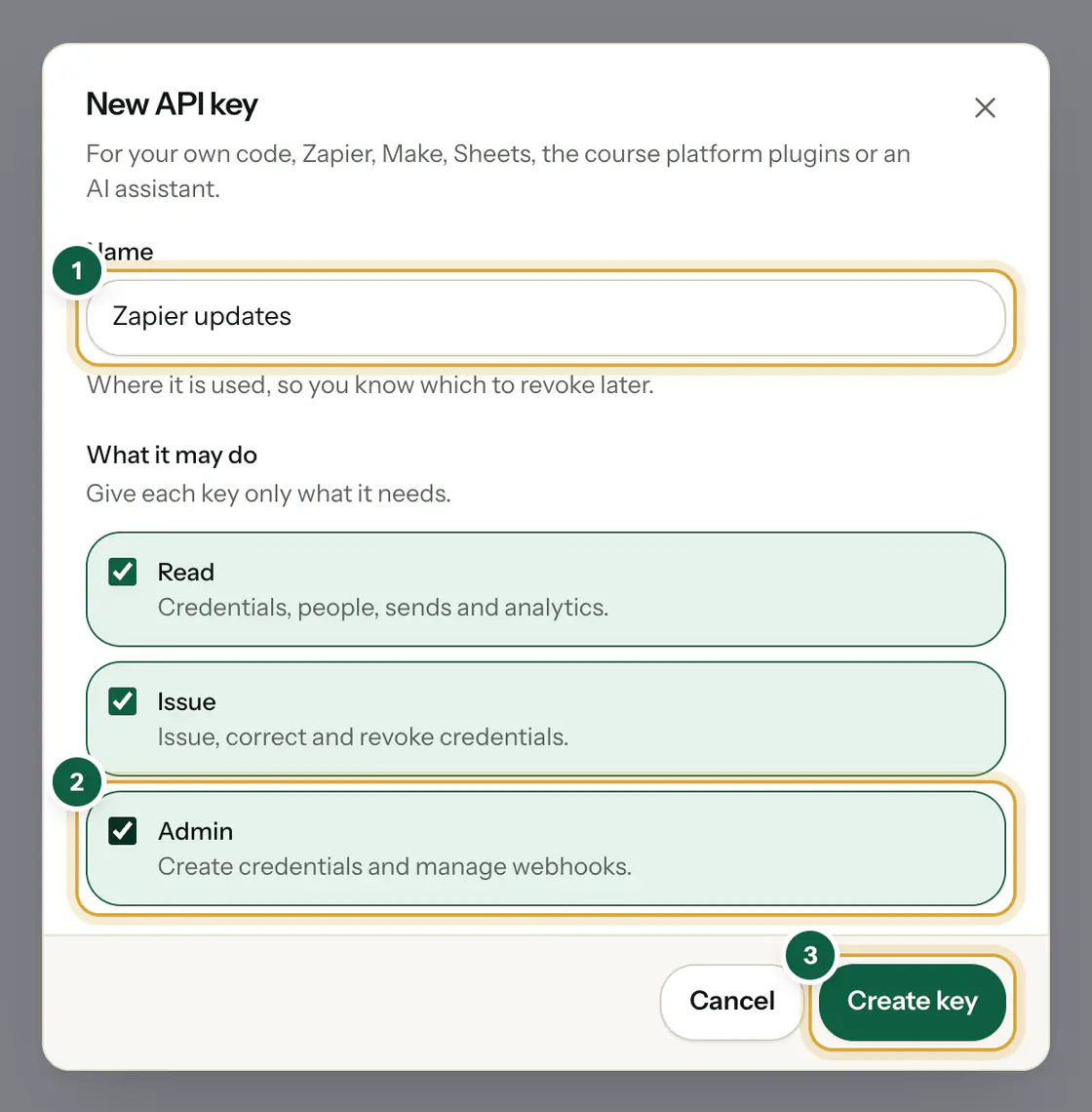
In Certnest, open Settings, API keys, New API key. Name it after where it will be used, such as "Zapier to Telegram", and tick Read and Admin. Admin lets the connection add the webhook it listens on, and nothing else is needed. Then choose Create key.
Give each tool its own key. You can revoke one without touching the others.
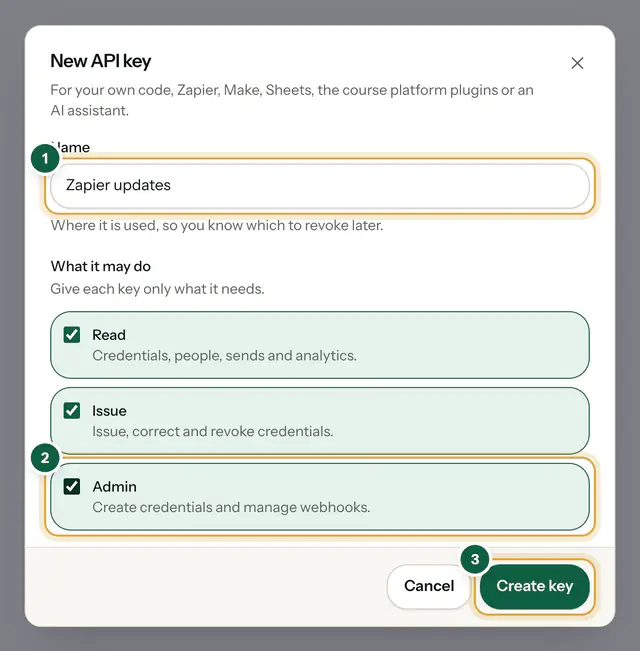
In Certnest. The New API key window in Certnest. 1: the key's name. 2: the Admin permission, ticked. 3: the Create key button. View full size Step 2: Copy the key now
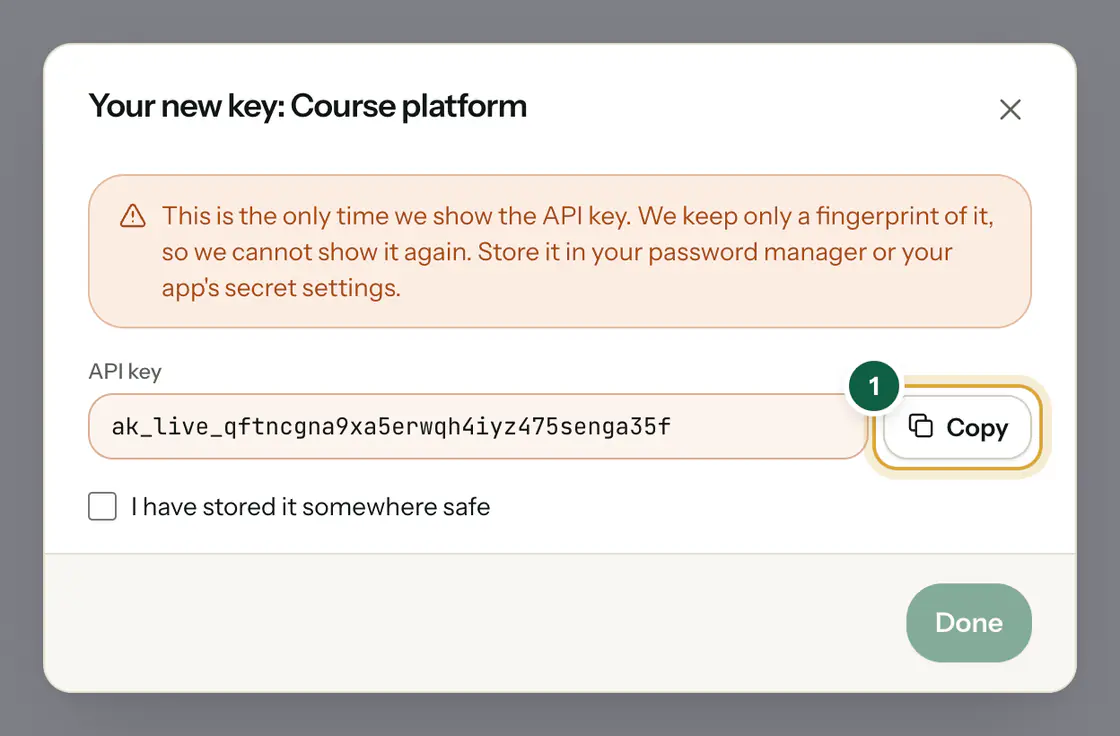
Certnest shows the key one time only and keeps just a fingerprint of it. Copy it into a password manager. If it is ever lost, rotate it in the same place and paste the new one.
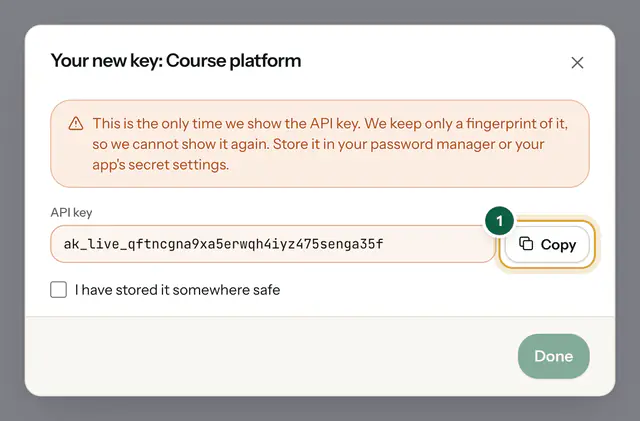
In Certnest. The window that shows a new API key once. 1: the Copy button. View full size Step 3: Start a Zap with a Certnest trigger
In Zapier, create a Zap and choose Certnest. Pick the event: Credential Issued, Credential Viewed, Added to LinkedIn or Email Bounced. Pick one credential to hear only about it, or leave it empty for all.
Drawing, not a screenshot. A drawing of a two-step automation. Step 1, highlighted: Certnest, Added to LinkedIn. Step 2: Telegram. Step 4: Load a sample
Zapier loads recent real events from your account to map from. With none yet, it shows a sample with the same fields.
Step 5: Add Telegram: Send message
Add an action, choose Telegram and "Send message", and connect your Telegram account.
Drawing, not a screenshot. A drawing of the same automation. Step 2, highlighted: Telegram, Send message. Step 6: Map the fields
Use Name, Email, Credential, Credential link, Status and When from the Certnest step to write the message or the record.
Drawing, not a screenshot. A drawing of Telegram's fields filled from the Certnest event. Step 7: Publish the Zap
When the Zap turns on, Zapier adds a webhook in Certnest for that one event. You see it under Settings, Webhooks, and it goes away when the Zap is turned off.
Step 8: Try it
Issue one credential to yourself, open it and add it to LinkedIn. The update reaches Telegram within seconds.


What happens next
What your team sees
Once it is on, Telegram hears about every change, and you can see each delivery.
1 of 2
The update lands in Telegram
Each time the event happens, Telegram gets the person's name, the credential and its link, as you mapped them.
Drawing, not a screenshot. A drawing of the update arriving in Telegram: a short note with a person's name and credential link. 2 of 2
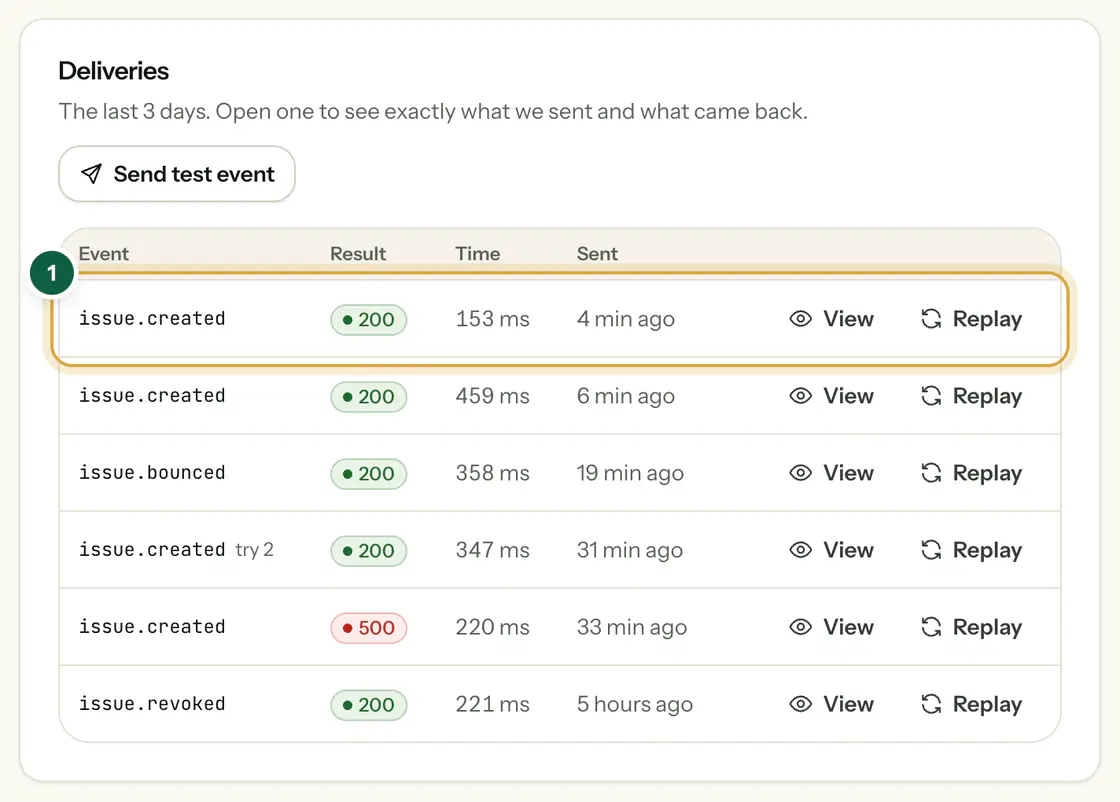
Every delivery is logged
In Certnest, Settings, Webhooks shows each delivery with its answer and timing. A failed one is tried again for three days, and you can send any delivery again by hand.
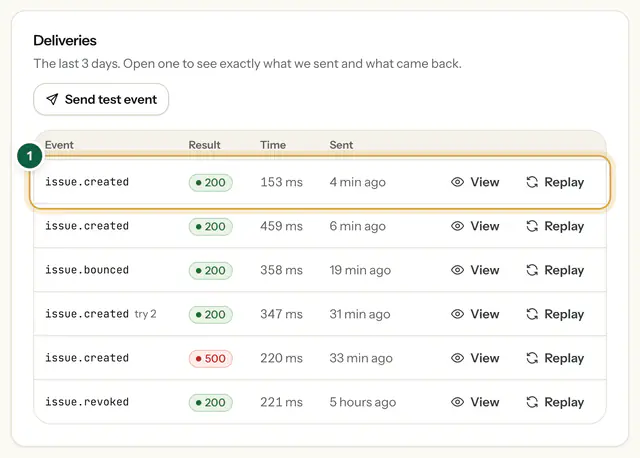
In Certnest. The webhook deliveries list in Certnest. 1: one delivery with its status code. View full size

Want to watch it happen? Try the interactive demo.
Ideas
What Certnest can tell Telegram
Use Certnest's triggers in Zapier or Make to post to a Telegram group or channel.
When Certnest
Credential Issued fires
Then Telegram
A note in your class group
When Certnest
Email Bounced fires
Then Telegram
A message to the organiser
When Certnest
A credential is verified
Then Telegram
A message to the admin channel
Troubleshooting
If something does not work
The run log and People and sends show what happened to each person. These are the usual fixes.
Zapier says it cannot subscribe
The key needs the Admin permission to add a webhook. Make a key with Read and Admin and reconnect.
Nothing arrives after I turned the Zap on
Check Settings, Webhooks in Certnest. If the endpoint shows Failing, open a delivery to see Zapier's answer. If it is missing, turn the Zap off and on again.
I get updates for every credential
Edit the trigger and pick one credential, or add a Zapier Filter on the Credential field.
The key stopped working
Someone may have rotated or revoked it. Open Settings, API keys, see when each key was last used, make a new one and paste it where the old one was.
Telegram questions
How does Telegram connect to Certnest?
Through Zapier. Telegram has its own Zapier app, and so does Certnest, so you connect the two without code.
Does the Telegram integration cost extra?
Integrations, the API and webhooks are on every Certnest plan, including the free plan with 1,000 credentials a year. Zapier or Make may charge for their own plans.
Can it issue the same person twice by mistake?
No. Every call carries an ID or a retry key. Someone who already holds a live copy of the credential gets the same one back, and is not emailed again.
Is Certnest partnered with Telegram?
No. Certnest connects to Telegram through its public features. Telegram is a trademark of its owner, and this page does not mean they endorse Certnest.
Related
Works well with
Zapier
NativeConnect Certnest to thousands of apps with triggers, actions and a search.
Slack
Via ZapierPost to a channel when someone earns or shares a credential.
- Make
Microsoft Teams
Via ZapierCelebrate new credentials in a Teams channel.
- Make
Discord
Via ZapierAnnounce new badges in your Discord server.
- Make
WhatsApp Business
Via webhookSend the credential link on WhatsApp with signed webhooks.
- Make
Gmail
Via ZapierSend a personal follow-up from your own Gmail when a credential is viewed.
- Make


All trademarks belong to their owners. Certnest is not affiliated with them unless stated. Logos from Simple Icons (CC0) where available.
Start issuing from Telegram
Free for your first 1,000 credentials a year. No card needed.