


Issue certificates and badges from Moodle
Issue a certificate when a learner completes a Moodle course.
The plugin is built and its payload is tested. It goes to the Moodle plugins directory after testing on a live site.

When Moodle
A learner completes Excel Basics
Then Certnest
Their certificate is emailed with the final grade
Every credential is signed and can be checked by anyone
Guide
How Moodle works with Certnest
The Certnest plugin for Moodle 4.2 and newer listens for course completion and sends each one to your Certnest automation, with retries. Your rules, such as a score of at least 70, decide who gets a credential.
Who it is for
- Schools, universities and training teams on Moodle 4.2 or later
- Site administrators (installing a plugin needs admin rights)
What you need
- Moodle 4.2 or later, with admin rights
- Course completion turned on in your courses
- The Certnest plugin for Moodle (local_certnest)
- A Certnest account, free plan included
- Connection
- Native
- How it connects
- Native, built by Certnest
- Set-up time
- About 15 minutes
- Category
- Courses and LMS
- Starts on
- Course completed
- Plans
- Every plan, including free
Step by step
Set up Moodle
About 15 minutes, 9 steps
Step 1: Start a Moodle automation
In Certnest, open Automations. Under Start from a trigger, choose Moodle.
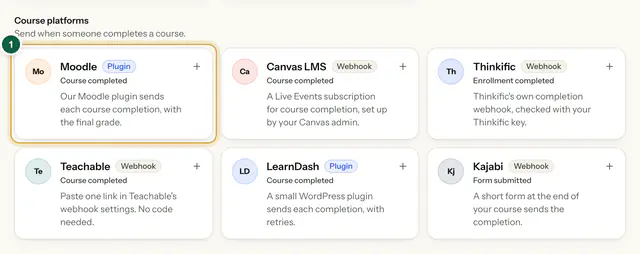
In Certnest. The trigger gallery in Certnest Automations. 1: the Moodle card. View full size Step 2: Pick the credential
Under Credential, choose what each person gets, such as a course certificate or a badge. The preview shows the design.
Step 3: Choose who qualifies and how it is sent
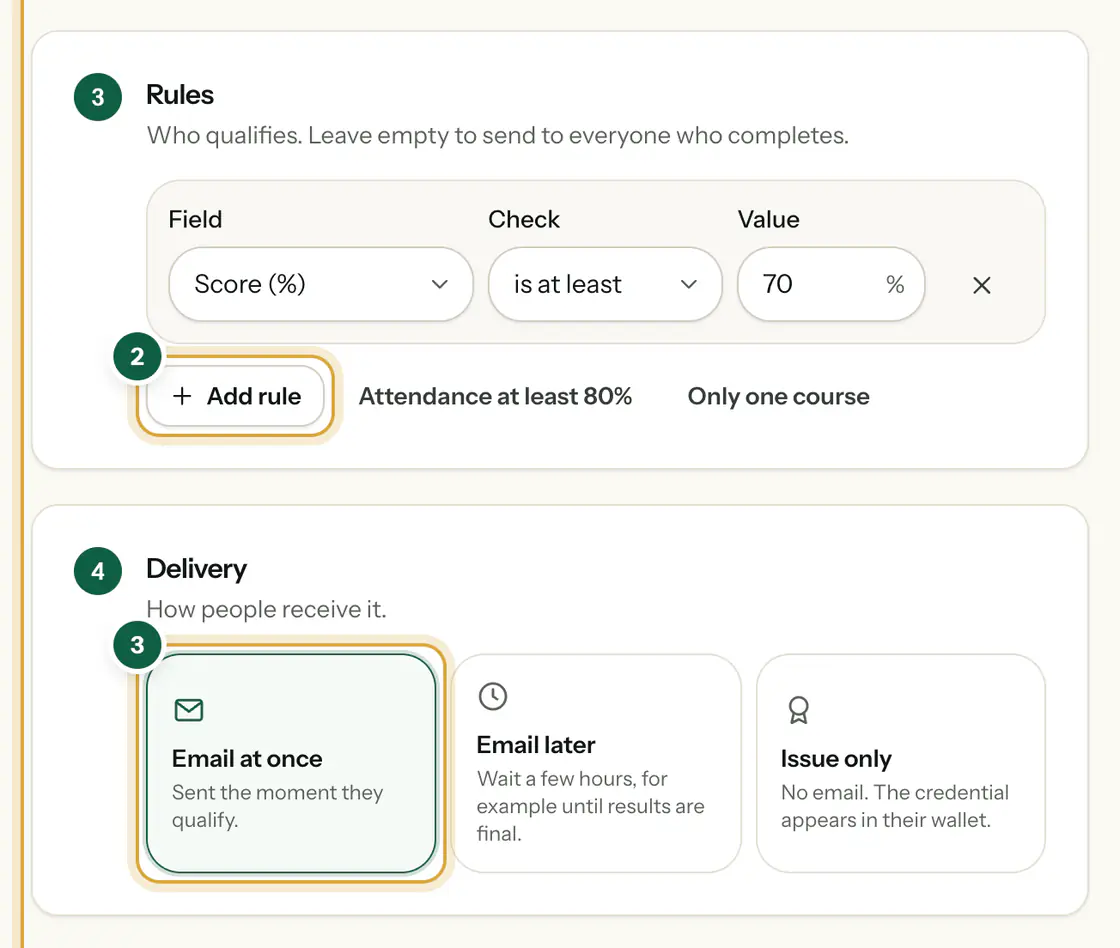
Under Rules, add checks such as Score is at least 70 or Attendance is at least 80 percent, or leave it empty to send to everyone who completes. Under Delivery, pick Email at once, Email later or Issue only.
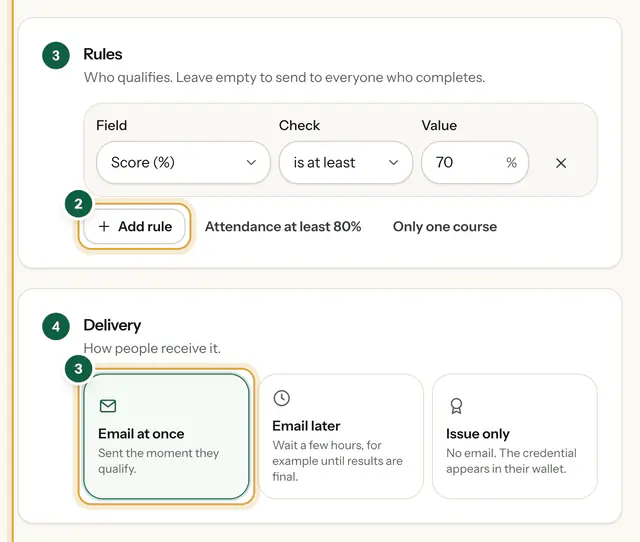
In Certnest. The Rules and Delivery steps of an automation, with the rule Score is at least 70 percent at the top. 2: Add rule. 3: Email at once, selected. View full size Step 4: Save and copy the inbound link
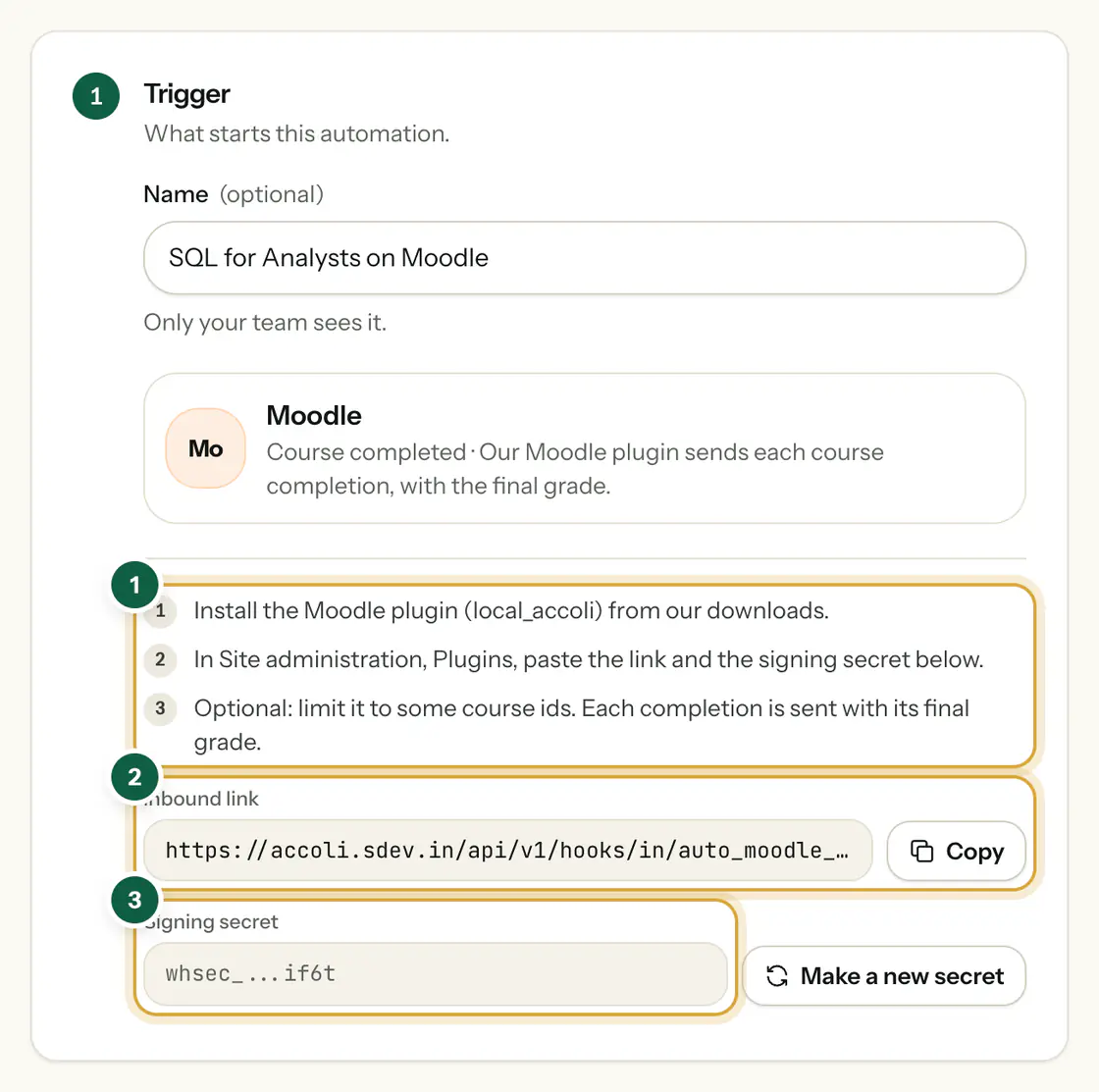
Choose Save. Step 1 Trigger now shows the short setup steps and the inbound link. Copy it for the next step. The signing secret is shown in full only once.
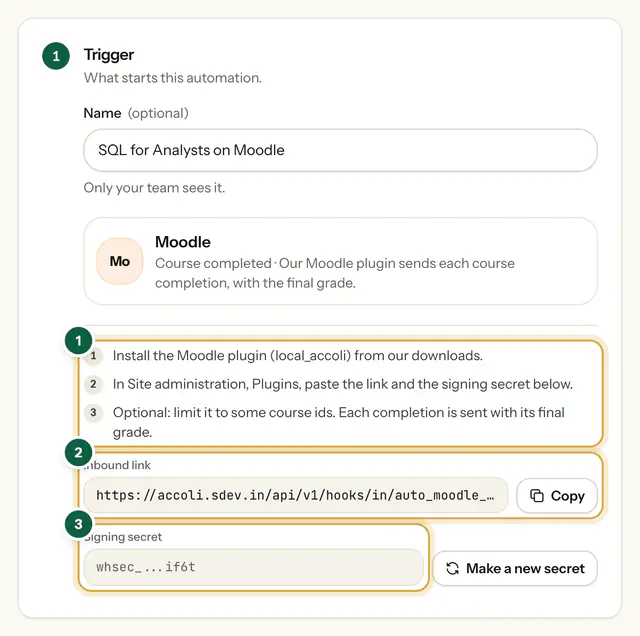
In Certnest. The Trigger step of a saved Moodle automation. 1: the setup steps. 2: the inbound link. 3: the signing secret. View full size Step 5: Install the Certnest plugin in Moodle
In Site administration, Plugins, Install plugins, upload the plugin zip (it installs to local/certnest) and finish the upgrade. Until it is in the Moodle plugins directory, we send the zip on request.
Drawing, not a screenshot. A drawing of a plugin install screen in a learning platform, with the Certnest plugin ready to install. Step 6: Paste the link and the secret
Open Site administration, Plugins, Local plugins, Certnest. Paste the Inbound URL and the Signing secret. Optional: list course ids under Only these courses, and keep Send the final grade on so a score rule works.
Drawing, not a screenshot. A drawing of the plugin settings: Inbound URL, Signing secret, Only these courses, and Send the final grade ticked. Step 7: Check completion tracking and cron
The plugin sends when Moodle marks a course complete, so turn on completion tracking and set the conditions in each course. Completions go out through Moodle's task runner, so cron must be running. A failed send is tried again on its own.
Step 8: Try it with a sample before real people arrive
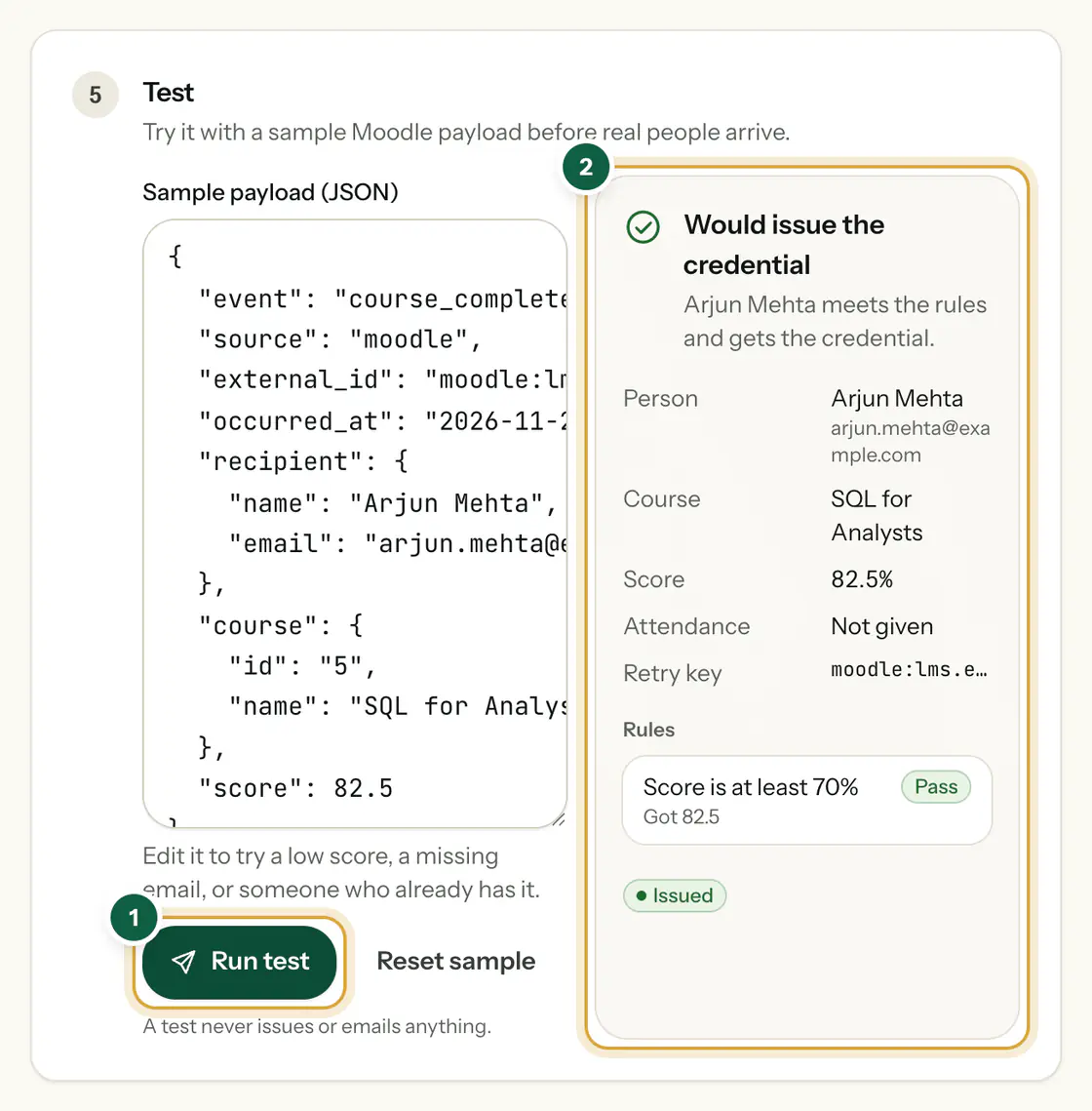
In the automation, step 5 Test holds a sample message in the right shape. Change the score or remove the email and choose Run test: it shows who would get the credential and why. A test never issues or emails anything.
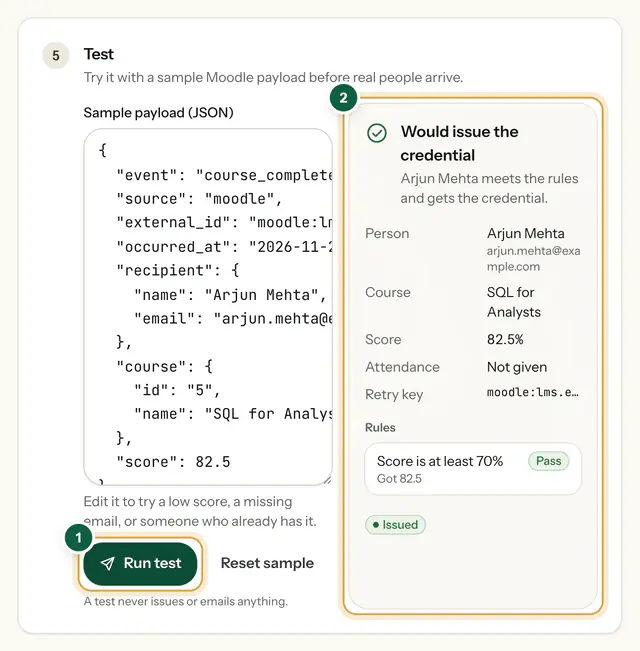
In Certnest. The Test step of an automation. 1: Run test. 2: the result, which explains each rule in plain words. View full size Step 9: Watch the run log
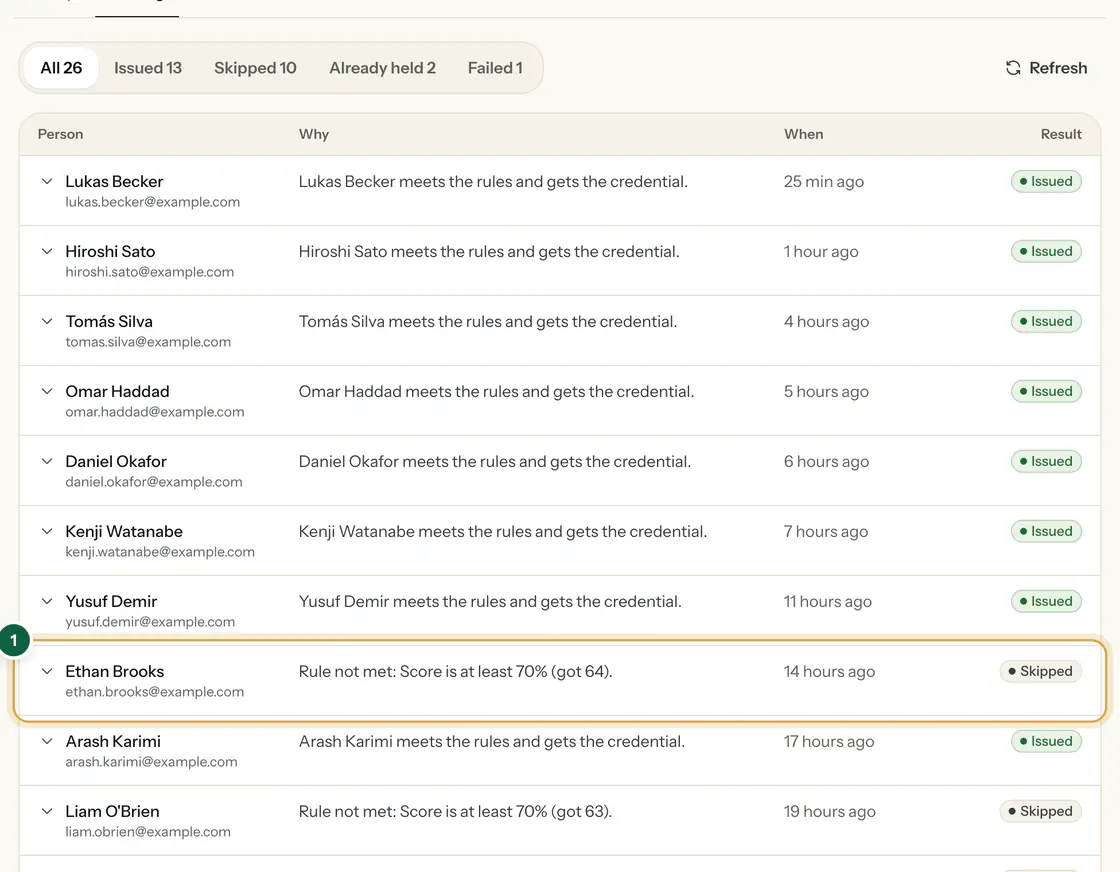
The Run log tab lists every message that arrived: issued, skipped by a rule, already held or failed, each with the reason. If someone asks why they did not get one, the answer is here.
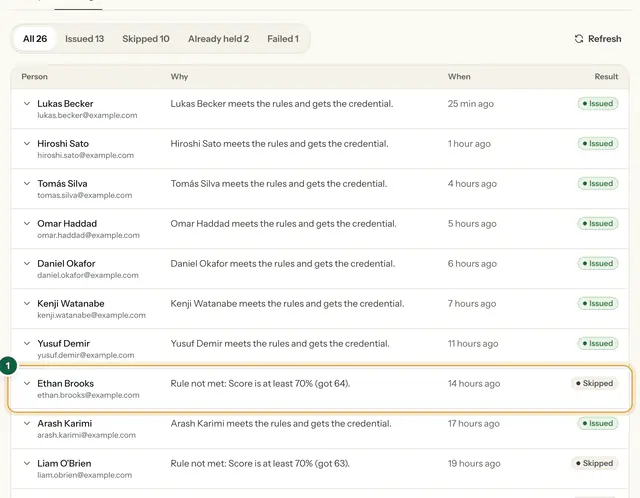
In Certnest. The Run log of an automation. 1: a row skipped by a rule, with the reason. View full size


What happens next
What the person receives
Whatever starts it, everyone gets the same signed credential, ready to share.
1 of 4
An email arrives
Within moments the person gets an email from your organisation with a button to their credential. You set the sender, the words and your logo in Settings, Email.
Drawing, not a screenshot. A drawing of the email a person receives: the organisation's name, a short note and a View your certificate button. 2 of 4
Their own credential page
The button opens the credential page: the design with their name, a PDF to download and one click to add it to LinkedIn. No account is needed.
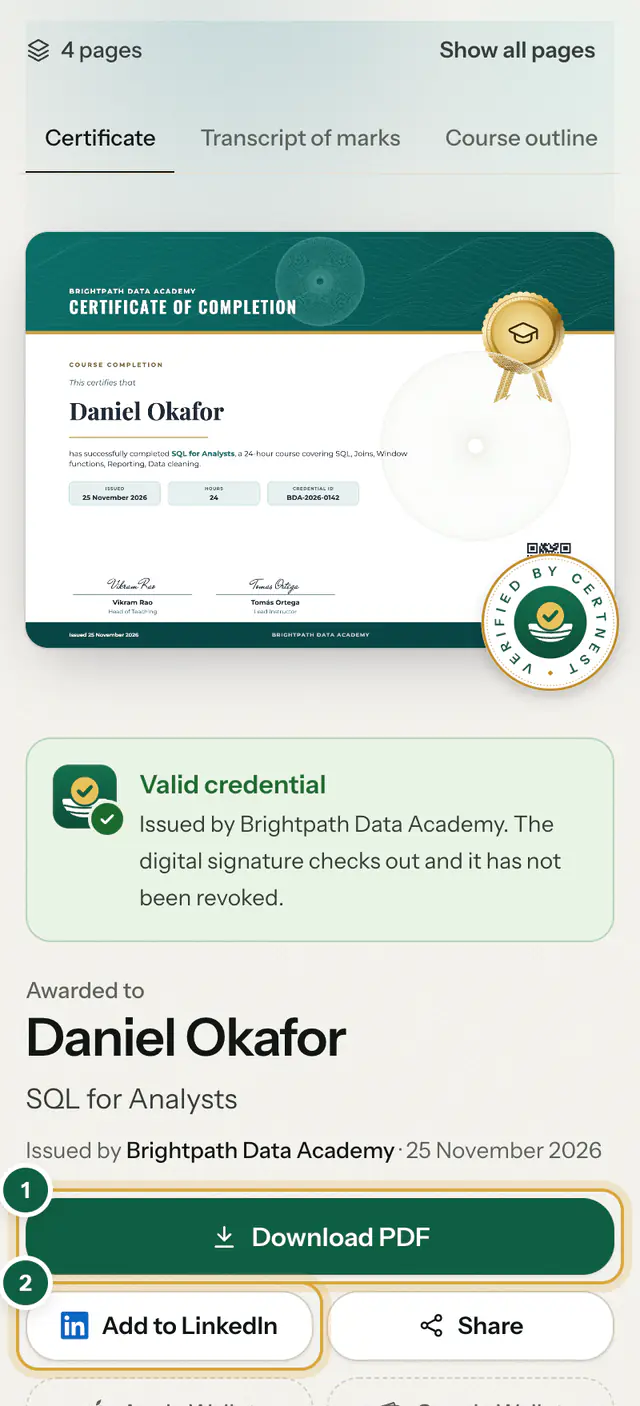
In Certnest. A credential page on a phone. 1: Download PDF. 2: Add to LinkedIn. 3 of 4
On their profile in one click
Add to LinkedIn fills in the credential name, your organisation, the date and the link, so it shows under licences and certifications.
Drawing, not a screenshot. A drawing of a profile section listing the new certificate, with the issuer and a Show credential link. 4 of 4
Anyone can check it is real
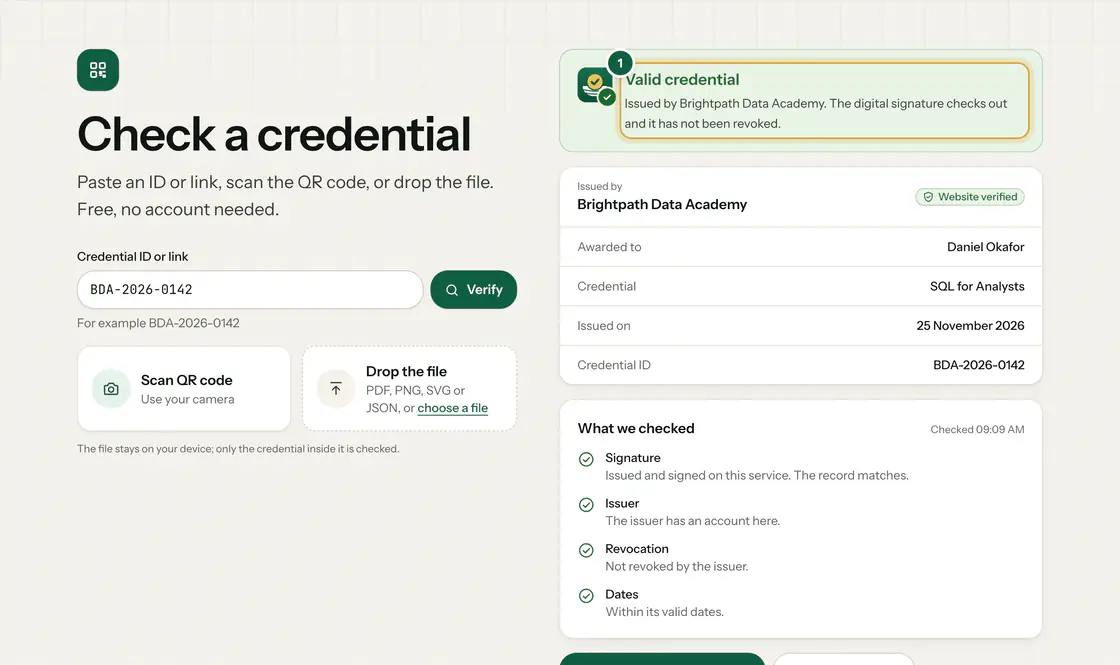
An employer opens the link or scans the QR code. Certnest checks the signature, that it was not revoked and that it has not expired.
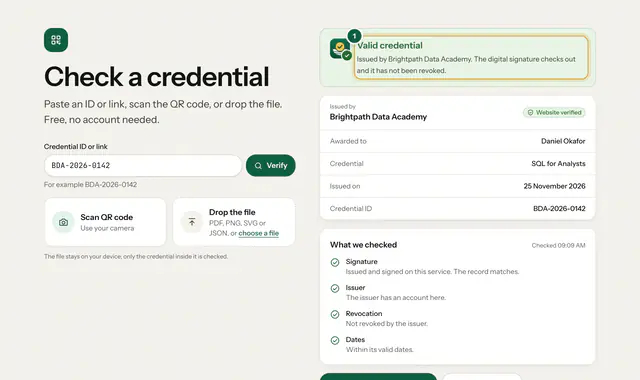
In Certnest. The verify page. 1: the result, a valid credential with the issuer named. View full size


Want to watch it happen? Try the interactive demo.
Ideas
What you can automate with Moodle
The Certnest plugin for Moodle 4.2 and newer listens for course completion and sends each one to your Certnest automation, with retries. Your rules, such as a score of at least 70, decide who gets a credential.
When Moodle
A learner completes Excel Basics
Then Certnest
Their certificate is emailed with the final grade
When Moodle
A learner completes a course with a grade under 70
Then Certnest
No credential, and the automation log says why
When Moodle
You run a backfill for last term
Then Certnest
Past completions are issued once each
Troubleshooting
If something does not work
The run log and People and sends show what happened to each person. These are the usual fixes.
Nothing arrives after a course is completed
Check that cron runs (Site administration, Server, Tasks) and that the course id is in Only these courses, or the list is empty.
Learners are skipped for their score
Turn on Send the final grade, or remove the score rule. A missing score counts as not passing when a score rule is set.
Someone did not get an email
Open People and sends and find them. A bounced address shows as Bounced: fix it and send again. If Delivery is set to Issue only, nothing is emailed by design.
The same person came through twice
They still hold one credential. A person who already has a live copy gets the same one back and is not emailed again. Send a stable ID with each person to make this exact.
Moodle questions
Is the Moodle integration built by Certnest?
Yes. We built and tested it ourselves. The plugin is built and its payload is tested. It goes to the Moodle plugins directory after testing on a live site.
Which Moodle versions work?
Moodle 4.2 and newer.
What if our site is offline when someone completes?
Each completion runs as a background task with retries, and the same learner and course is never issued twice.
Does the Moodle integration cost extra?
Integrations, the API and webhooks are on every Certnest plan, including the free plan with 1,000 credentials a year. Zapier or Make may charge for their own plans.
Can it issue the same person twice by mistake?
No. Every call carries an ID or a retry key. Someone who already holds a live copy of the credential gets the same one back, and is not emailed again.
Is Certnest partnered with Moodle?
No. Certnest connects to Moodle through its public features. Moodle is a trademark of its owner, and this page does not mean they endorse Certnest.
Related
Works well with
Canvas
NativeSend credentials on Canvas course completions.
LearnDash
NativeIssue certificates when learners finish LearnDash courses on WordPress.
Thinkific
NativeSend a credential when a Thinkific enrollment is completed.
Teachable
NativeIssue a certificate when a student completes a Teachable course.
Kajabi
NativeSend credentials from Kajabi with a short form at the end of a course.
Docebo
NativeIssue credentials when learners complete Docebo courses or learning plans.
- Webhook
- Make
- API


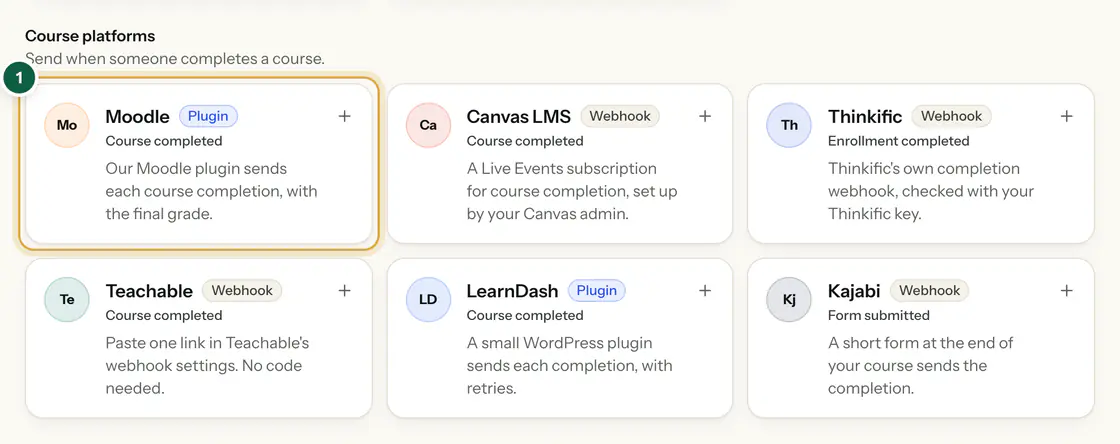
All trademarks belong to their owners. Certnest is not affiliated with them unless stated. Logos from Simple Icons (CC0) where available.
Start issuing from Moodle
Free for your first 1,000 credentials a year. No card needed.