Help for HR teams
How to check a certificate: a guide for HR teams
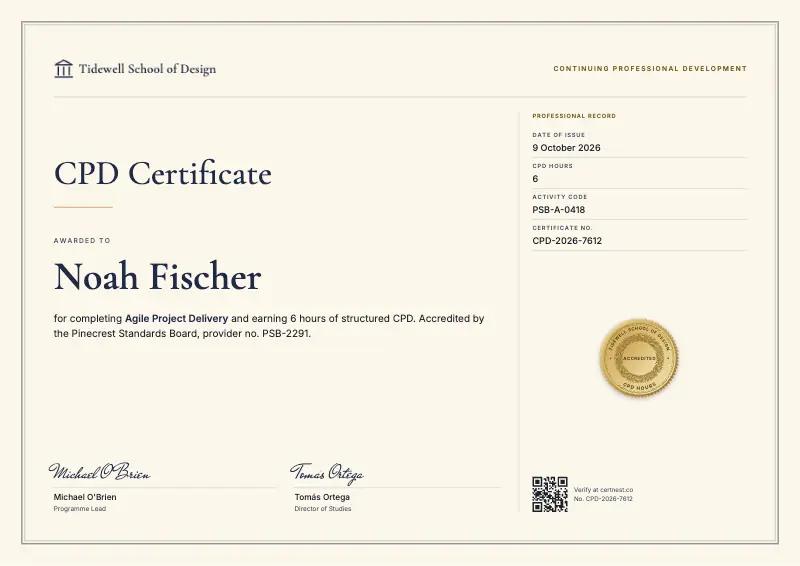
Candidates often share certificates as a link, a PDF or a picture with a QR code. Each one can be checked in seconds, for free, without an account.
Three steps
Check it in under a minute
- 1
Open the link or scan the code
Click the credential link, or scan the QR code on the certificate with your phone camera. The page shows the live status.
- 2
Or drop the file
Go to certnest.co/verify and drop the PDF or badge picture. Only the credential inside is checked; the file stays on your computer.
- 3
Read the answer
Look at the status line first, then the name, the issuer and the dates. The issuer line says how we verified the organisation.
What the answer means
Each result, in plain words
- Valid credential
- The digital signature checks out and the issuer has not revoked it.
- Expired
- It was genuine, but its end date has passed. Ask whether a renewal exists.
- Revoked
- The issuer withdrew it. Do not accept it; the candidate can ask the issuer why.
- Changed after signing
- The file was edited after it was issued. Ask the candidate for the original link.
- Not found
- The ID was typed wrong, or the credential does not exist. Check the ID with the candidate.
Good habits
- Compare the name on the result with the candidate's documents.
- Check the issuer line: “Website verified” means the organisation proved it owns its website.
- A screenshot proves nothing on its own. Always open the link or check the file.
- Checking many candidates? Your IT team can add the check to your hiring system with the verify API.
Want the check inside your hiring system?
Your IT team can add the widget or the verify API in an afternoon.